Error 0x80244022: What It Is and Why It Occurs
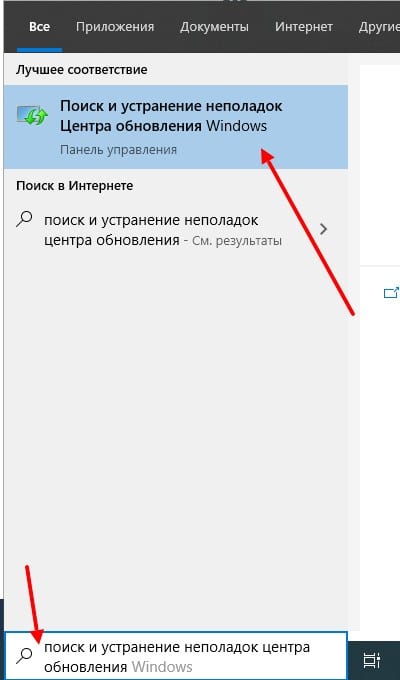
Typical error message when checking for updates
Error 0x80244022 is a failure code from Windows Update. It occurs when checking for or downloading updates and indicates that the client cannot properly communicate with Microsoft's servers or process the response. The error falls under the categories WU_E_NO_UPDATE or WU_E_PT_HTTP_SERVER_ERROR and is usually caused by client-side issues rather than failures on Microsoft's end.
Typical symptoms:
- Checking for updates hangs or fails with an error.
- The update interface displays the message "We couldn't check for updates. An unknown error occurred."
- Entries from the source
WindowsUpdateClientwith code0x80244022appear in the Windows Event Viewer (Windows Logs -> Application).
The main causes are local:
- Corrupted update cache. Invalid data in the
%windir%\SoftwareDistributionand%windir%\System32\catroot2folders. - Service failures. Unstable operation of the
wuauserv(Windows Update),bits(Background Intelligent Transfer Service), orcryptSvc(Cryptographic Services) services. - Network issues. Inability to resolve update domains (
*.windowsupdate.com) or establish an HTTPS connection. - Software blocking. Antivirus or firewall blocking access to update servers or system catalogs.
- Corrupted system files. Missing or damaged components required for update processing.
- Incorrect proxy. A proxy server configured in the system or browser interfering with the connection.
How to Fix Error 0x80244022: 5 Working Methods
Perform the solutions sequentially, from simplest to most complex. Each step requires administrator rights.
Method 1: Restart Key Services
This method resolves temporary service disruptions.
- Launch Command Prompt or PowerShell as an administrator.
- Stop the services:
net stop wuauserv net stop cryptSvc net stop bits net stop msiserver - After the message "The service was stopped successfully," start them again:
net start wuauserv net start cryptSvc net start bits net start msiserver - Restart your computer and check for updates.
Method 2: Manually Clear the Update Cache
A deeper reset that forces Windows to re-download metadata.
- Stop the
wuauservservice as in Method 1. - Delete the cache folder contents in the same console:
rd /s /q %windir%\SoftwareDistribution
rd /s /q %windir%\System32\catroot2
💡 Important: These commands permanently delete the folders. The system will automatically recreate them empty when the service starts next.
- Start the services again (
net start wuauservand others). - Restart the PC and try checking for updates.
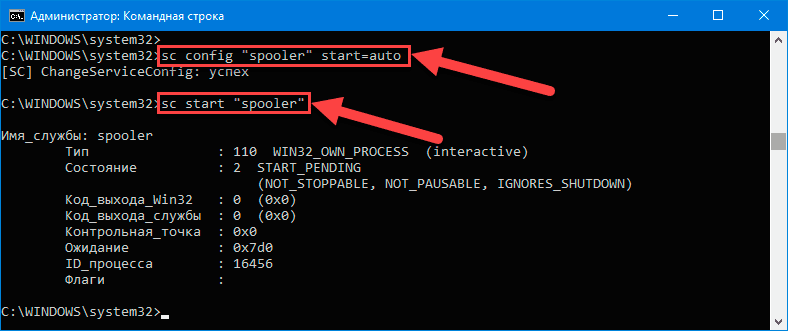
Windows update cache folders
Method 3: System Image Repair and File Check
If the issue is with corrupted system components.
- In the administrator console, perform a Windows image repair:
The process will take 10–20 minutes and require an internet connection.DISM.exe /Online /Cleanup-image /Restorehealth - After DISM completes successfully, run the file integrity check:
sfc /scannow - Restart the computer after both processes finish.
Method 4: Network and Firewall Diagnostics
Ensure nothing is blocking the connection to update servers.
- Check basic connectivity. Run
ping windowsupdate.microsoft.com. If packets fail, the issue is network-related. - Reset network settings in the administrator console:
After execution, restart the computer.ipconfig /flushdns netsh winsock reset netsh int ip reset - Temporarily disable antivirus and firewall. If the error disappears, add exceptions for the
svchost.exeservice (with parameters-k netsvcs) and domains*.windowsupdate.com,*.microsoft.com. - Check proxy settings. Ensure no unnecessary proxy is configured in Windows network settings and the browser (IE/Edge). Disabling via Group Policy may require advanced knowledge.
Method 5: Full Component Reset via PowerShell
A combined method merging Methods 1 and 2.
- Launch PowerShell as an administrator.
- Run the command:
Get-Service wuauserv, cryptSvc, bits, msiserver | Stop-Service -Force Remove-Item -Path "$env:windir\SoftwareDistribution\*" -Recurse -Force Remove-Item -Path "$env:windir\System32\catroot2\*" -Recurse -Force Get-Service wuauserv, cryptSvc, bits, msiserver | Start-Service - Restart the system and check for updates.
What to Do If Nothing Helped?
- Try updating in a clean boot. Start Windows without third-party services and programs (use
msconfig-> "Selective startup" -> "Services" -> "Hide all Microsoft services"). If the update succeeds, the issue is a software conflict. - Use the Media Creation Tool (for Windows 10/11). This Microsoft tool allows you to manually upgrade the system, bypassing Windows Update.
- Check date and time. Incorrect system clocks disrupt SSL connections. Enable automatic time synchronization.
- Consult the Event Viewer. In
Windows Logs -> Application, look for events from sourcesWindowsUpdateClientorCBSfor more precise diagnostics.