Windows Update Error 0x80244010
Error 0x80244010 (code WU_E_PT_HTTP_STATUS_BAD_REQUEST) appears when Windows Update cannot properly communicate with Microsoft's servers. The system receives an invalid HTTP response or fails to establish a connection. This results in the message "We couldn't connect to the update service. We'll try again later." or "An unexpected error occurred."
The problem does not damage the system, but it blocks the installation of security updates and patches, leaving the computer unprotected.
Main Causes
- Corrupted update cache. Files in the
C:\Windows\SoftwareDistributionfolder are downloaded with errors. - Windows Update service failure. Malfunction of the
wuauserv,bits, orcryptsvcservices. - Antivirus/Firewall blocking. Third-party security software or the built-in firewall is preventing the connection.
- System file corruption. Missing or damaged DLL components required for updating.
- Network issues. Incorrect proxy settings, conflicting VPN clients, or an unstable connection.
- Registry errors. Corrupted keys related to update components.
::in-article-ad::
5 Working Fixes
1. Restart Windows Update Services
This method resolves most temporary service hiccups.
- Press
Win + R, typeservices.msc, and press Enter. - Find and stop (right-click → Stop) the services:
Windows UpdateBackground Intelligent Transfer Service(BITS)Package Caching(if present; often part of Windows Update)Cryptographic Services
- After they have fully stopped, start them again (right-click → Start).
- Try checking for updates.
Alternative via PowerShell (Administrator):
Stop-Service -Name wuauserv, bits, cryptsvc -Force
Start-Service -Name wuauserv, bits, cryptsvc
2. Clear the Update Cache
If restarting didn't help, corrupted files in the cache are a likely cause.
- Stop the Windows Update service (see method 1).
- Open File Explorer and navigate to
C:\Windows\SoftwareDistribution. - Delete all contents of the
DownloadandDataStorefolders. If the system prevents deletion, ensure the service is completely stopped. - Start the Windows Update service again.
- Check for updates. The system will download the files anew.
3. Temporarily Disable Antivirus and Firewall
Aggressive traffic filtering by third-party software is a common cause.
- Temporarily disable your antivirus (including Windows Defender if active).
- Open Windows Defender Firewall → "Turn Windows Defender Firewall on or off" → disable for both private and public networks.
- Try running the update check.
- Immediately after successful update installation, re-enable your antivirus and firewall.
4. Check and Repair System Files
Corruption of system components can trigger the error.
- Launch Command Prompt or PowerShell as Administrator.
- Run the system file integrity check:
Wait for completion (10-20 minutes).sfc /scannow - If
sfcrepaired files, restart your PC and check for updates. - If
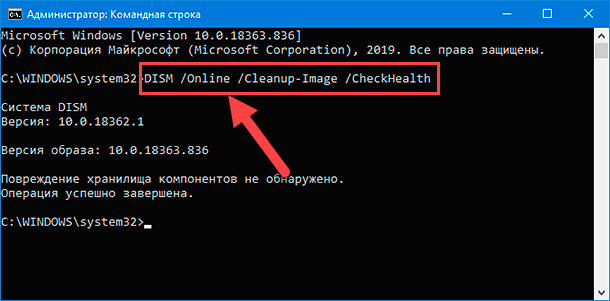
sfcdidn't help or reported unfixable files, perform an image restore:DISM /Online /Cleanup-Image /RestoreHealth - After DISM completes, run
sfc /scannowagain, restart the computer, and retry the update check.
5. Full Reset of Windows Update Components
A radical but effective method if nothing else worked.
- Stop all related services (Windows Update, BITS, Cryptographic Services), as in method 1.
- Rename the cache folders (requires Administrator rights):
C:\Windows\SoftwareDistribution→SoftwareDistribution.oldC:\Windows\System32\catroot2→catroot2.old
- Reset BITS settings in the registry. Caution: create a registry backup (
File→Export) before editing!- Open
regeditas Administrator. - Navigate to
HKEY_LOCAL_MACHINE\SOFTWARE\Microsoft\Windows\CurrentVersion\BITS. - Delete the
StateandDownloadTimeoutvalues.
- Open
- Start the services again.
- Restart the computer. On the next update attempt, the system will create new, empty
SoftwareDistributionandcatroot2folders.
Simplified Alternative: Run the built-in troubleshooter (msdt.exe /id WindowsUpdateDiagnostic) or the WSReset.exe utility (find via Start menu).