What the 'Missing Security Updates' FaceIT Error Means
When launching the FaceIT client, you may see a message saying "Missing security updates" or "Windows security updates are required to run FaceIT". The FaceIT anti-cheat system detects that the latest Microsoft security updates are not installed on the operating system. The platform blocks the launch to reduce the risk of exploitation of known vulnerabilities that cheaters could use for unfair play.
The error appears immediately when attempting to open the client and prevents you from proceeding to server selection.
Causes
- Missing Windows updates. Automatic installation is disabled, or updates are installed but a restart has not been performed.
- Conflict with antivirus or firewall. Third-party programs (Avast, Kaspersky) or the built-in Windows Firewall block FaceIT's access to update verification services.
- Corrupted system files. Files related to Windows Update or security components are damaged.
- Outdated Windows build. FaceIT requires a minimum set of updates that is absent in older versions of the system.
- Windows Update service malfunctions. The service is disabled, malfunctioning, or needs to be reset.
Solution 1: Install All Windows Updates
FaceIT checks for critical and important security updates. Install them completely.
- Open Windows Settings (Win + I) → Update & Security → Windows Update.
- Click "Check for updates".
- Install all found updates, including:
- Security updates (mandatory).
- System updates (recommended).
- Driver updates (optional).
- After installation completes, restart your computer.
- Check for updates again to ensure nothing was missed.
- Launch FaceIT.
Solution 2: Run FaceIT as Administrator
Insufficient permissions can prevent the client from checking update status.
- Find the FaceIT shortcut in the Start menu or on the desktop.
- Right-click → "Run as administrator".
- To configure permanent admin launch:
- Right-click the shortcut → Properties → Compatibility tab.
- Check "Run this program as an administrator" → Apply → OK.
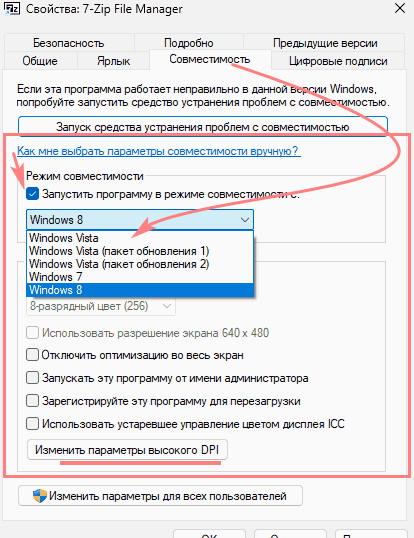
Compatibility tab in the program shortcut properties with the 'Run as administrator' option
Solution 3: Temporarily Disable Antivirus and Firewall
Antiviruses and firewalls may incorrectly block FaceIT's update checks.
⚠️ Caution: Only disable protection temporarily and re-enable it immediately after checking.
- Disable antivirus:
- For third-party antiviruses (Avast, Kaspersky, etc.): find the tray icon (bottom-right corner), right-click → "Disable" or "Pause protection" for 10–15 minutes.
- For Windows Defender:
- Open Control Panel → Security and Maintenance → Windows Security.
- Under "Virus & threat protection", click "Manage settings" and turn off "Real-time protection".
- Disable firewall:
- In "Windows Security", go to "Firewall & network protection".
- For the active network (Private/Public), click "Disable".
- Try launching FaceIT.
- Add exceptions to prevent recurrence:
- In the antivirus: add the FaceIT folder (usually
C:\Program Files (x86)\FaceIT\orC:\Program Files\FaceIT\) to exclusions. - In the firewall: create a rule for
FaceIT.exe(both inbound and outbound connections).
- In the antivirus: add the FaceIT folder (usually
Solution 4: Repair Update-Related System Files (DISM and SFC)
If updates are installed but the error persists, Windows Update components may be corrupted.
- Open PowerShell or Command Prompt as administrator (Win + X → select the appropriate option).
- Run the system image repair:
The process will take 10–20 minutes and use Windows Update to download repaired components.DISM.exe /Online /Cleanup-image /Restorehealth - After DISM completes, check system file integrity:
Scanning will also take time. If corruption is found and repaired, restart your computer.sfc /scannow - Repeat Solution 1 (install updates) and try launching FaceIT.
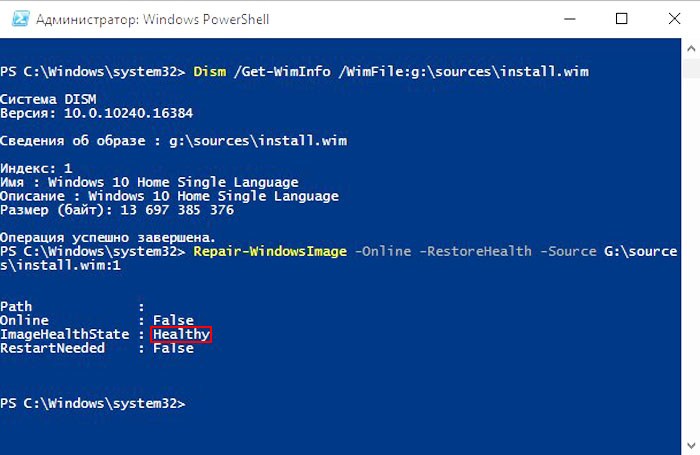
PowerShell window with DISM and SFC commands for repairing system files
Prevention
To avoid the problem recurring:
- Keep Windows automatic updates enabled in Settings → Update & Security.
- Manually check for updates regularly, at least once a month, especially before important tournaments.
- Add exceptions for FaceIT in your antivirus and firewall immediately after installing the client.
- Do not disable the Windows Update service via
services.mscor the registry — this will break many programs. - Monitor FaceIT's Windows version requirements. The platform may raise the minimum system build.