What Error 284 Means
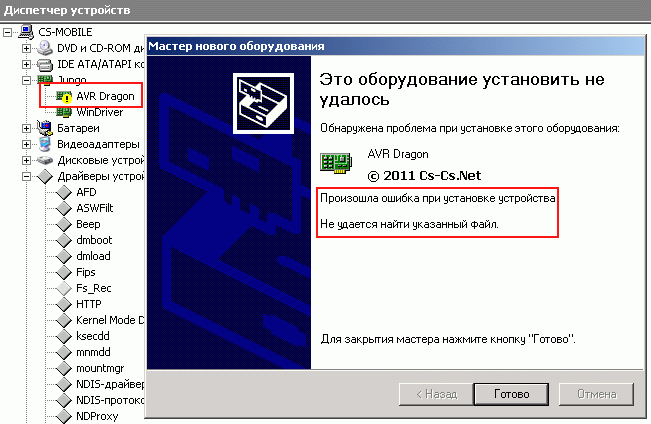
Error 284 message during program installation
Error 284 is a code generated by the Windows Installer service. Its standard message is "The system cannot find the file specified". The error occurs during the installation, update, or removal of programs. The installer attempts to access a specific file (a .dll library, configuration file, driver) at the specified path, but the file is missing or the path is incorrect.
Why Error 284 Occurs
The cause is always related to file unavailability. Main scenarios:
- Corruption of system components. Key Windows libraries required by the installer are missing or damaged.
- Aggressive antivirus protection. Security software blocks the installer's access to temporary folders or system directories.
- Insufficient space on the system drive. The installer needs free space to unpack data.
- Errors in the Windows Registry. Invalid or outdated paths in keys related to the application being installed.
- Conflicts with drivers or background services. Third-party software interferes with the installer's operation.
- The file was actually deleted. The installer program contains an error, or the file was deleted manually or by another program.
How to Fix Error 284
Perform the actions sequentially, starting with the simplest.
1. Check Free Space on Drive C:
The installer requires temporary space. A minimum of 10 GB is needed.
- Open File Explorer, right-click on drive
C:→ Properties. Check the free space. - If space is low, run Disk Cleanup (
Win + R→cleanmgr→ Enter). Select driveC:and delete temporary files, update cache. - After cleanup, restart your computer.
2. Restore System Files (SFC and DISM)
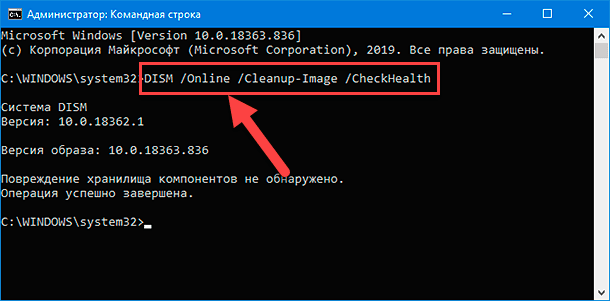
System file recovery process via SFC and DISM
These built-in tools check and repair corrupted Windows components.
- Launch PowerShell or Command Prompt as Administrator.
- Run the command:
sfc /scannow - After completion (15-30 minutes), run if SFC did not help:
DISM /Online /Cleanup-Image /RestoreHealth - Restart your PC.
3. Temporarily Disable Antivirus and Firewall
⚠️ Caution: Disable protection only during the installation. Re-enable it immediately after the process completes.
- In your antivirus interface, find the option "Pause protection" or "Disable" (usually for 10-15 minutes).
- Open Windows Defender Firewall → "Turn Windows Defender Firewall on or off". Temporarily disable it for private and public networks.
- Retry the program installation.
4. Perform a Clean Boot of Windows
This eliminates conflicts with background services from third-party programs.
- Press
Win + R, typemsconfig→ Enter. - On the "Services" tab:
- Uncheck "Hide all Microsoft services".
- Click "Disable all".
- Go to the "Startup" tab → "Open Task Manager". In the manager, disable all startup items.
- Click OK in
msconfigand select "Restart". - After booting, try installing the program. If the error disappears, re-enable services and startup items in groups to find the culprit.
5. Manually Fix the Registry Entry (Caution!)
Only if previous steps did not help and the installer logs indicate a specific registry key.
💡 Tip: The installer log is usually located in
%TEMP%and namedMSIXXXXX.LOG. Find the line with error 284 in it—it will indicate the exact path to the missing file or the incorrect registry key.
- Press
Win + R, typeregedit→ Enter. - In the Registry Editor, press
Ctrl + Fand enter the path or file name from the log. - If the found key contains an incorrect path (e.g., points to a non-existent
D:\drive instead ofC:\), double-click it and correct the path. - If the key is unnecessary and clearly causes the error, you can delete it (right-click → Delete).
- Mandatory before editing: In the
Filemenu →Export, save a backup of the entire branch or the entire registry. - After making changes, restart your computer.