What Causes Error 0x80073701
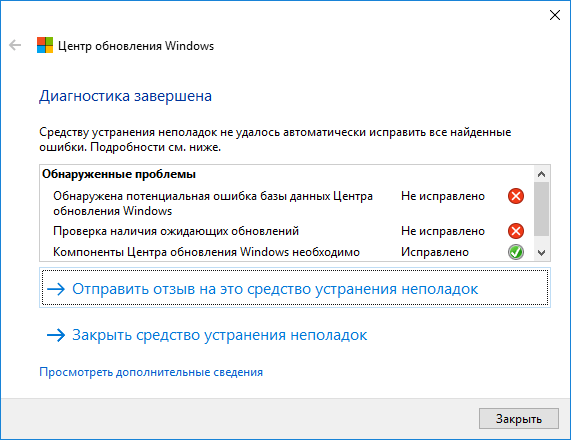
Error 0x80073701 in Windows Update
The code 0x80073701 (textual representation — ERROR_SXS_ASSEMBLY_MISSING) appears when attempting to install Windows updates. Symptoms:
- Windows Update reports: "Failed to install update".
- Manual installation of an
.msufile fails with the same code. - An entry with this code appears in the Event Viewer (
Event Viewer) underMicrosoft-Windows-WindowsUpdateClient/Operational.
The error means that the system cannot find the required assembly in the WinSxS component store. This store contains various versions of system libraries, and a specific version is required for the update installation. If it is missing or corrupted, the installation fails.
Main Causes
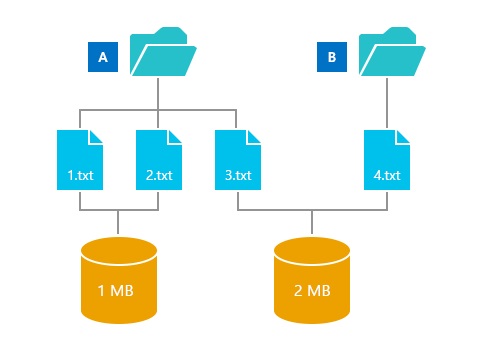
WinSxS component store
- Corruption of the WinSxS store. Files in
C:\Windows\WinSxSmay have been deleted by third-party "cleanup" utilities or corrupted during a previous failed installation. - Incomplete or corrupted update cache. The
SoftwareDistribution(downloaded updates) andcatroot2(digital signatures) folders contain bad data. - Conflict with antivirus software. Some security programs block DISM's access to system files or the network.
- Insufficient disk space. Temporary space is required to unpack updates.
- Disk errors. Physical bad sectors lead to data loss in system files.
Step-by-Step Troubleshooting
Perform the methods sequentially, starting with the first.
1. Check and Repair System Files (SFC)
The SFC utility checks and repairs protected system files.
- Launch PowerShell or Command Prompt as Administrator.
- Enter the command:
sfc /scannow - Wait for completion (10–20 minutes). If SFC found and repaired files, restart your PC and try updating again.
⚠️ Important: If SFC reports that "some files could not be repaired", this is not fatal—proceed to the next step (DISM). SFC cannot restore missing components in WinSxS.
2. Repair System Image (DISM)
DISM fixes the WinSxS store by downloading missing files from Windows Update or a local source.
- In the administrator console, run:
DISM /Online /Cleanup-Image /RestoreHealth - The process will take 15–30 minutes. DISM may require a restart to complete some operations.
- After successful completion, restart the computer.
If DISM cannot connect to Microsoft servers (e.g., in an isolated network), specify a local source:
DISM /Online /Cleanup-Image /RestoreHealth /Source:WIM:D:\sources\install.wim:1 /LimitAccess
Where D:\ is the drive letter of the Windows installation media.
3. Clear the Windows Update Cache
Corrupted files in the download folders often block installation.
- Stop the update service:
net stop wuauserv - Rename the folders (this is safer than deletion):
C:\Windows\SoftwareDistribution→SoftwareDistribution.oldC:\Windows\System32\catroot2→catroot2.old
- Start the service again:
net start wuauserv - Restart your PC.
4. Full Reset of Update Components via PowerShell
This script automates stopping services, cleaning folders, and re-registering libraries.
- Launch PowerShell as Administrator.
- Run the entire script:
Stop-Service -Name wuauserv, cryptSvc, bits, msiserver -Force Rename-Item -Path "C:\Windows\SoftwareDistribution" -NewName "SoftwareDistribution.old" -ErrorAction SilentlyContinue Rename-Item -Path "C:\Windows\System32\catroot2" -NewName "catroot2.old" -ErrorAction SilentlyContinue New-Item -ItemType Directory -Path "C:\Windows\SoftwareDistribution", "C:\Windows\System32\catroot2" -ErrorAction SilentlyContinue $dlls = @("atl.dll","urlmon.dll","mshtml.dll","shdocvw.dll","browseui.dll","jscript.dll","vbscript.dll","scrrun.dll","msxml.dll","msxml3.dll","msxml6.dll","actxprxy.dll","softpub.dll","wintrust.dll","dssenh.dll","rsaenh.dll","gpkcsp.dll","sccbase.dll","slbcsp.dll","cryptdlg.dll","oleaut32.dll","ole32.dll","shell32.dll","initpki.dll","wuapi.dll","wuaueng.dll","wuaueng1.dll","wucltui.dll","wups.dll","wups2.dll","wuweb.dll","qmgr.dll","qmgrprxy.dll","wucltux.dll","muweb.dll","wuwebv.dll") foreach ($dll in $dlls) { regsvr32.exe /s "C:\Windows\System32\$dll" } Start-Service -Name wuauserv, cryptSvc, bits, msiserver Write-Host "Reset complete. Restart your computer." -ForegroundColor Green - Restart the system.
5. Check Disk and Space
- Ensure at least 10–15 GB of free space on drive
C:. - Run a disk check:
(requires restart).chkdsk C: /f /r - Test RAM via Windows Memory Diagnostic (search in Start menu).
What to Do If Nothing Helped?
- Perform a clean boot of Windows (
msconfig→ "Services" → disable all third-party, "Startup" → disable everything). This eliminates conflicts with software. - Use Media Creation Tool to update the system while preserving files.
- Restore the system from a restore point created before the error appeared.
- Check the disk for physical damage (SMART attributes via CrystalDiskInfo).
Prevention
- Do not manually delete files from the
WinSxSfolder—this will guaranteed break the system. - Keep free space on the system drive (at least 15 GB).
- Install updates regularly, avoiding large accumulations.
- Use only licensed antivirus; temporarily disable it during major updates if problems arise.
- Run
sfc /scannowonce a month for prevention.