What Does Error 39 Mean
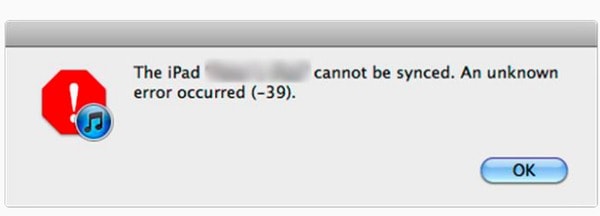
iTunes window showing error 39 message during iPhone sync
Error 39 (also known as iTunes Error 39 or -39) is a status code from the iTunes Store/App Store. It appears when attempting to sync, download, or install content (apps, music, movies) on an iOS device. While not critical, the error completely blocks the store from functioning.
Typical messages:
Failed to download purchases. An unknown error (39) occurred.Error 39 occurred during sync.Failed to install [App Name].
The error occurs during the data transfer phase between the device and Apple's servers. Most often, the problem is related to the integrity of local data or the network connection.
Causes
Error 39 is usually caused by one of the following specific issues:
- Corrupted iTunes Store/App Store cache files. Outdated or broken files in the local cache of the device or computer interfere with proper data exchange.
- Network connection issues. Unstable Wi-Fi, port blocking on the router, conflicts with VPN services, or antivirus software that interferes with traffic.
- Apple ID authentication failure. An expired or invalid session token, or issues with security certificates.
- iTunes version conflict. An outdated version of iTunes on the computer is incompatible with the current iOS version on the device.
- Insufficient free space. Additional space is required to unpack and install content, but it is not available.
- iOS system file corruption. Rare, but possible after a failed update or jailbreak.
Solutions
We offer sequential methods, starting with the simplest and fastest. Perform the steps in order.
Method 1: Quick Restart and Network Check
This step resolves most temporary glitches.
- Restart your iOS device. Hold the power button and, if present, the volume button until the slider appears. Power off and back on after 30 seconds.
- Restart your Wi-Fi router. Unplug it from power for a minute, then plug it back in. Wait for it to fully reboot.
- Disable VPN and antivirus. If active on the device or computer, temporarily disable them.
- Try a different network. Connect to another Wi-Fi (e.g., a mobile hotspot) to rule out an issue with your specific router.
- Check free space. Go to
Settings → General → [Device]. If less than 500 MB is free, delete unnecessary apps, photos, or videos.
Method 2: Sign Out and Back Into Apple ID
This method refreshes the session and authentication tokens.
- On your iPhone/iPad, open
Settings. - Scroll down and tap your name and profile (at the top) →
iTunes Store and App Store. - Tap your Apple ID and select
Sign Out. - Restart the device (as in Method 1).
- After restarting, open
Settings → iTunes Store and App Storeagain and sign in by entering your Apple ID username and password.
Method 3: Reset iTunes Store Settings and Revoke Permissions
A deeper reset affecting both the device and the computer.
On the iOS device:
- Go to
Settings → General → Reset. - Select
Reset iTunes Store and App Store Settings. Confirm the action. - After the reset, restart the device.
On the computer (if the issue occurs during sync):
- Launch iTunes.
- In the menu, select
Account → Permissions → Revoke Permissions. (On macOS:Account → Authorize This Computer...). - Connect the device to the computer. A
Trust This Computer?prompt may appear on the iPhone screen — tapTrust. - In iTunes, click the device icon and attempt to sync the content again.
Method 4: Complete iTunes Reinstallation (for Windows/macOS)
If the error occurs when syncing with a computer, the problem may be with the iTunes application itself.
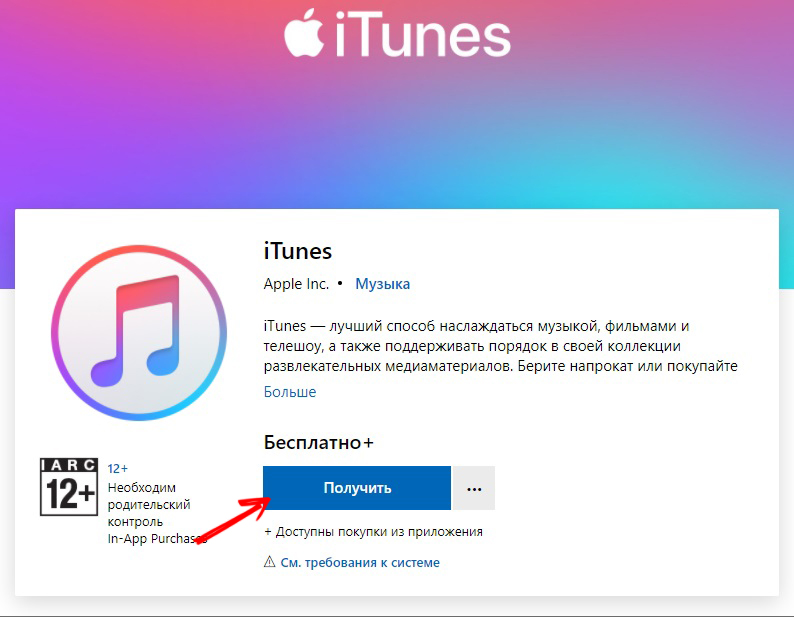
Official iTunes download page on Apple's website
For Windows:
- Close iTunes and all related processes (via Task Manager).
- Open
Control Panel → Programs and Features. Find iTunes and uninstall it. - Important: Also uninstall the components
Apple Mobile Device Support,Bonjour, andApple Application Support(if they appear in the list). - Manually delete remaining folders:
C:\Program Files\iTunesC:\Program Files\Common Files\AppleC:\Users\[Your Name]\AppData\Local\AppleC:\Users\[Your Name]\AppData\Roaming\Apple Computer
- Download the latest version of iTunes from the official Apple website (not via the Microsoft Store).
- Install the downloaded file, following the instructions.
- Restart the computer and try syncing the device again.
For macOS:
- Drag the iTunes app from the
Applicationsfolder to the Trash. - Delete related files from
~/Library/(theLibraryfolder in your home directory):Caches/com.apple.itunesPreferences/com.apple.iTunes.plistApplication Support/iTunes
- Download iTunes from Apple's website or install it via the App Store (if available for your macOS version).
- Restart your Mac and try again.
Prevention
To prevent error 39 from recurring, follow these recommendations:
- Keep software up to date. Regularly update iOS (
Settings → General → Software Update) and iTunes on your computer to the latest stable versions. - Use stable networks. Avoid public or congested Wi-Fi networks for downloading large files. If you have issues with your home router, reboot it weekly.
- Monitor free space. Keep at least 1-2 GB of free space on your device for store cache and temporary files to operate.
- Avoid unofficial VPNs. Choose reputable VPN services that do not block Apple's traffic.
- Back up regularly. Before any major action (reset, update), create a device backup via iCloud or iTunes. This protects your data.