What is Error 525
Error 525 is a status code returned by Cloudflare when it cannot complete an SSL handshake with your origin web server. Full name: SSL handshake failed.
Important: this error only appears when Cloudflare proxying is active (orange cloud in the DNS record). If Cloudflare is disabled (grey cloud), requests go directly to the server, and error 525 will not occur.
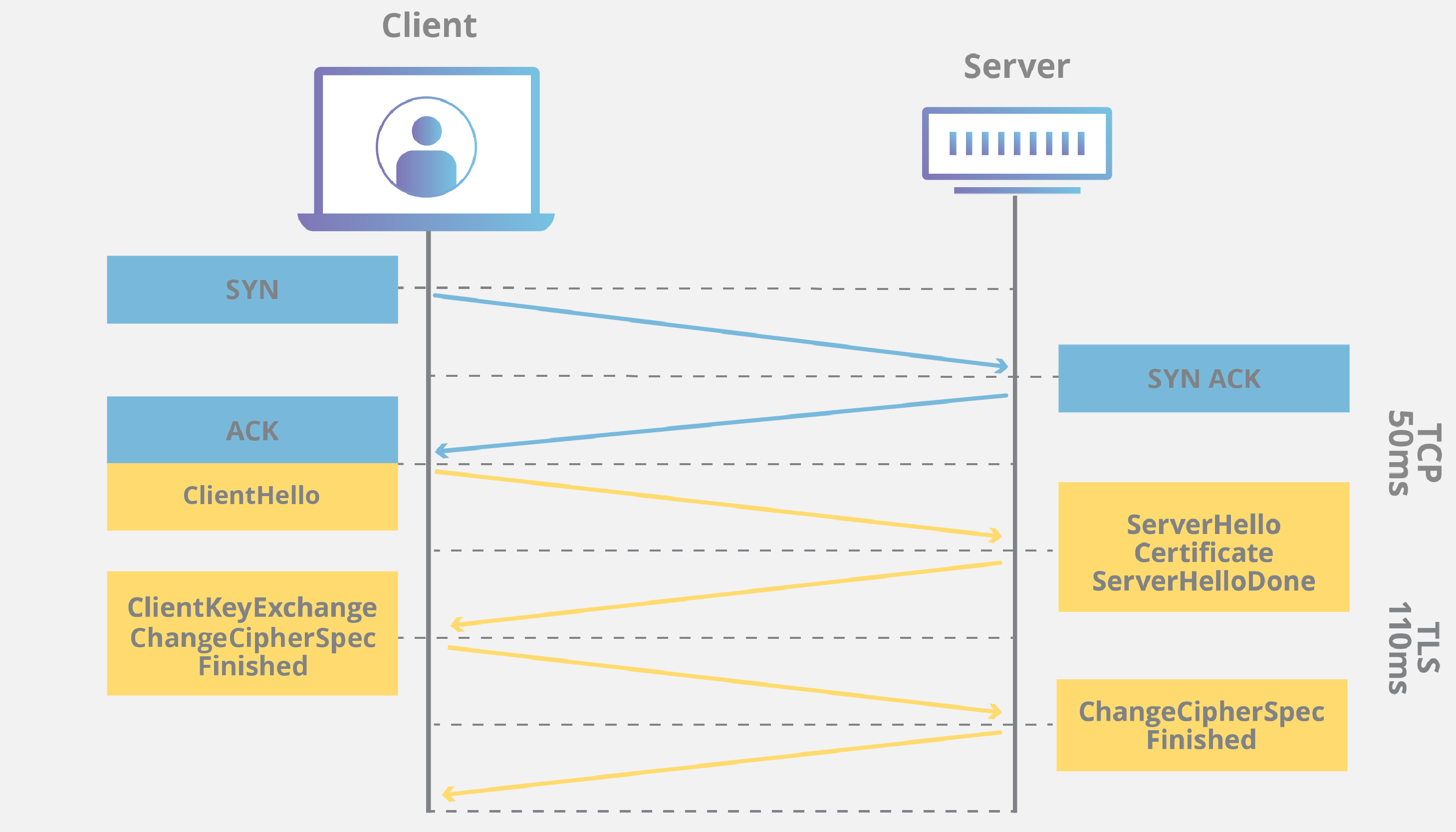
Diagram of SSL handshake between Cloudflare and web server with failure point
Main Causes
- Expired or invalid SSL certificate on the server. Cloudflare checks the validity period and trust chain.
- Incorrect SSL configuration on the server: wrong paths to certificate and private key files, missing intermediate certificates.
- Server not accepting connections on port 443 or firewall blocking this port.
- Incompatible TLS protocols or ciphers. Cloudflare requires support for TLS 1.2 and above. If the server is configured only for older protocols (SSLv3, TLS 1.0) or weak ciphers, the handshake will fail.
- Server overloaded or temporarily unavailable to Cloudflare.
- Blocking of requests from Cloudflare by a firewall (WAF) or other security software on the server.
How to Fix Error 525
Check the SSL Certificate
Ensure the certificate is valid and contains the full chain (root + intermediate). You can verify via:
# Check validity period and chain (replace path)
openssl x509 -in /etc/ssl/certs/your-certificate.crt -text -noout | grep -A 1 "Validity"
Or use the free service SSL Labs Test. If the certificate is expired, renew it (e.g., via Certbot for Let's Encrypt):
sudo certbot renew --dry-run
After renewal, reload the web server.
Check SSL Configuration
Apache (2.4+):
- Open the virtual host file (e.g.,
/etc/apache2/sites-available/your-site.conf). - In the
<VirtualHost *:443>block, ensure correct directives are present:
Note:SSLEngine on SSLCertificateFile /path/to/fullchain.pem # full chain (certificate + intermediates) SSLCertificateKeyFile /path/to/private.keySSLCertificateChainFileis deprecated. UseSSLCertificateFilefor the full chain. - Check file permissions: the key must be accessible only by root (chmod 640).
- Check configuration and reload:
sudo apache2ctl configtest
sudo systemctl reload apache2
Nginx (1.10+):
- Open the configuration file (e.g.,
/etc/nginx/sites-available/your-site). - In the
serverblock forlisten 443 ssl, check:ssl_certificate /path/to/fullchain.pem; ssl_certificate_key /path/to/private.key; - Check configuration and reload:
sudo nginx -t
sudo systemctl reload nginx
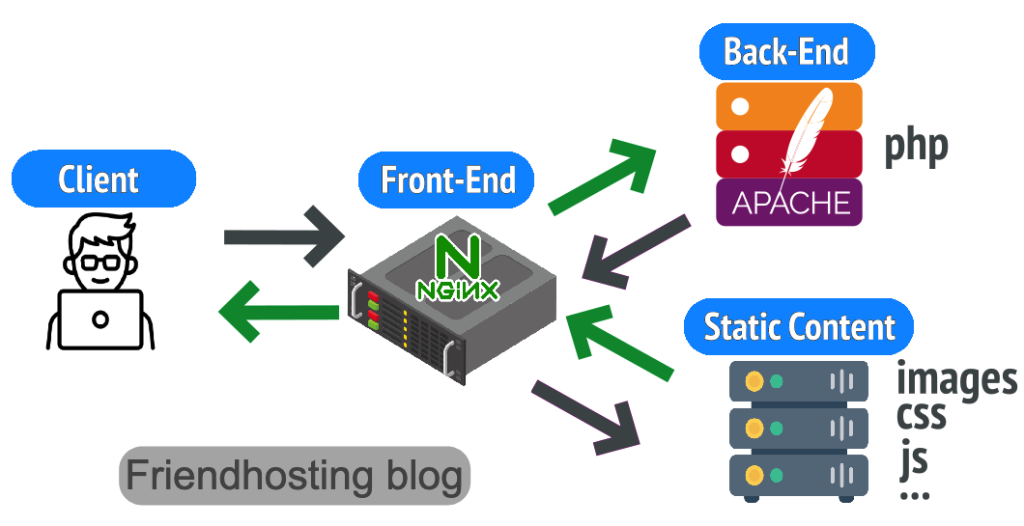
Examples of Apache and Nginx configuration files for HTTPS Apache and Nginx virtual hosts with SSL directives
Ensure Port 443 is Open
- Check if the server is listening on port 443:
If output is empty, configure the web server to listen on port 443 (see configuration above).sudo ss -tulpn | grep :443 - Check the firewall:
sudo ufw status # for UFW sudo firewall-cmd --list-all # for firewalld - Allow port 443 if blocked:
sudo ufw allow 443/tcp
sudo firewall-cmd --permanent --add-service=https && sudo firewall-cmd --reload
Configure TLS Protocols and Ciphers
Cloudflare requires TLS 1.2 or higher. In your server configuration, disable outdated protocols.
Apache:
SSLProtocol all -SSLv2 -SSLv3 -TLSv1 -TLSv1.1
SSLCipherSuite HIGH:!aNULL:!MD5:!SEED
Nginx:
ssl_protocols TLSv1.2 TLSv1.3;
ssl_ciphers HIGH:!aNULL:!MD5;
Reload the server after changes.
Diagnostics by Disabling Cloudflare
- In the Cloudflare dashboard, find your domain's DNS record.
- Change it to "DNS only" status (grey cloud).
- Wait 5 minutes and try opening the site via HTTPS directly (e.g.,
https://your-server-IP). - If the error disappears — the issue is with your server's SSL settings. Return Cloudflare to proxy mode and work through methods 1–4.
- If the error remains — the problem is on the server side, unrelated to Cloudflare (e.g., certificate not configured for direct access).
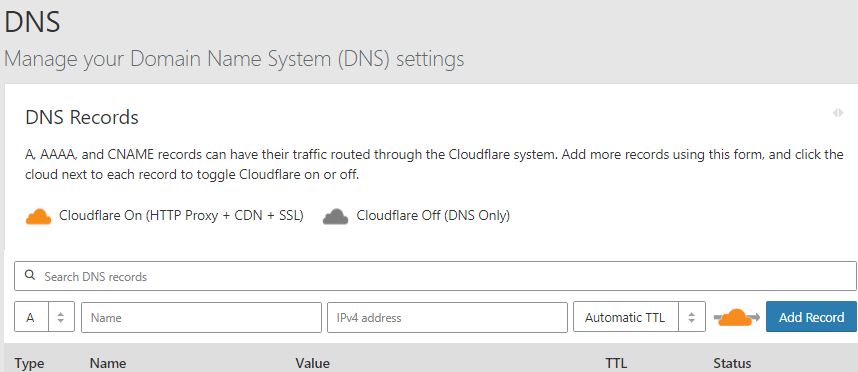
Cloudflare orange and grey cloud icons in DNS panel Cloudflare proxying modes: orange (proxy) and grey (DNS only)
Contact Your Hosting Provider
If you use shared hosting and lack server configuration access:
- Gather information: domain, error code 525, SSL Labs test results.
- Contact your provider's support and request they check:
- SSL certificate validity and chain.
- Virtual host configuration for HTTPS.
- Port 443 accessibility from external addresses.
Preventing Error 525
- Automate SSL certificate renewal. For Let's Encrypt, use Certbot with automatic renewal (
certbot renew). Set up expiration notifications. - Regularly test your SSL configuration. Run checks via SSL Labs quarterly or after any server changes.
- Follow Cloudflare's requirements. In the Cloudflare dashboard (SSL/TLS → Overview), recommended settings are displayed. Ensure your server complies.
- Monitor web server and Cloudflare logs. Check Nginx/Apache logs for SSL errors. In Cloudflare, review Firewall → Events for blocks.
- Avoid outdated protocols. When updating your web server, ensure TLS 1.2 and 1.3 are enabled by default.