What is Cloudflare Error 522
Error 522 (Connection Timed Out) occurs when Cloudflare's servers cannot establish a TCP connection with your origin web server. Cloudflare successfully resolves the domain name, but when attempting to connect to the server's IP address, it does not respond to the SYN packet within 20–30 seconds.
This is a server-side or network issue, not a user problem. Users see a standard Cloudflare page with the message "Error 522: Connection timed out".
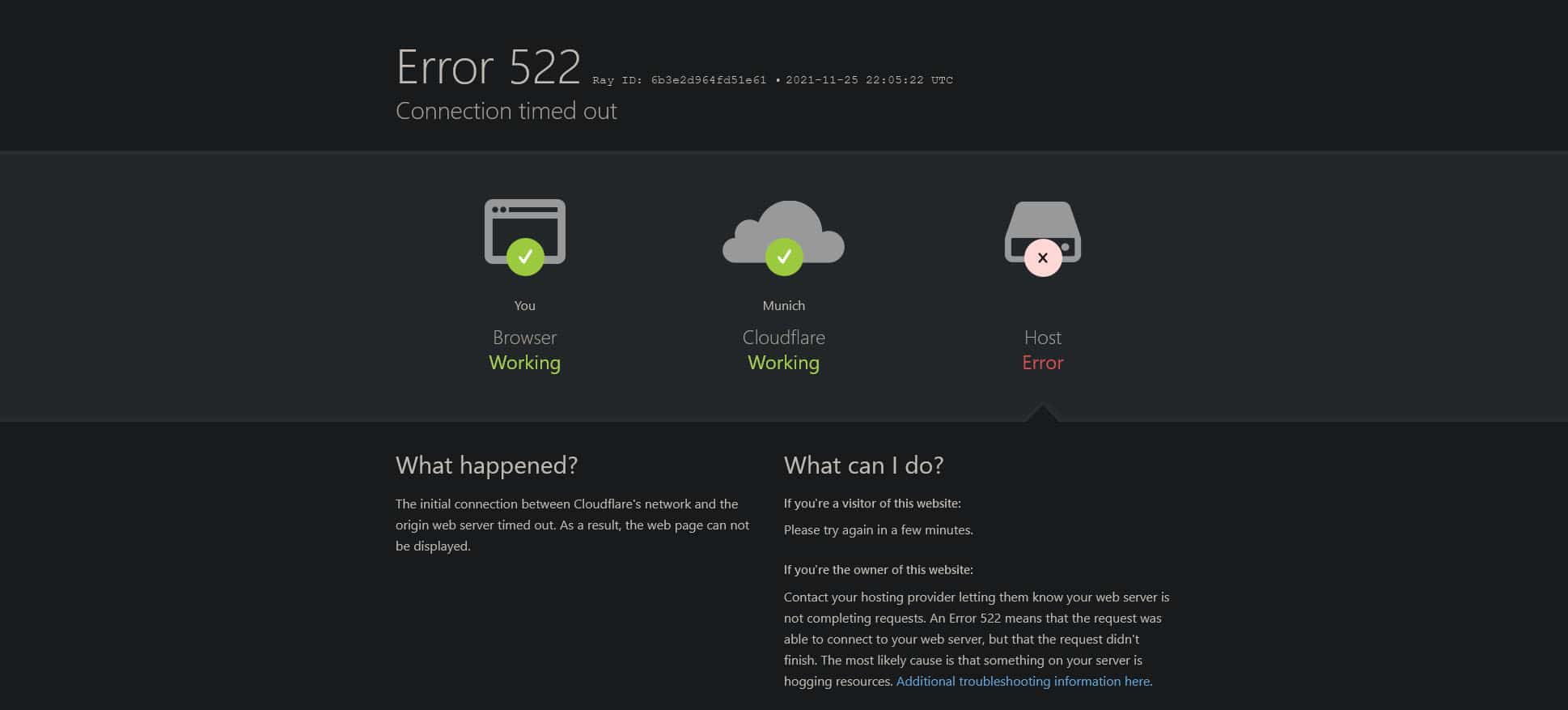
Diagram of a TCP connection between Cloudflare and a server, ending in a 522 error
Common Causes
Error 522 means packets from Cloudflare are not reaching the server or the server is not responding. Common causes:
- Server is down or not listening on ports. The web server (nginx, Apache) is not running, or the service has crashed.
- Firewall is blocking Cloudflare.
iptables,ufw,firewalld, or cloud Security Group rules do not allow traffic from Cloudflare's IP addresses on ports 80/443. - High server load. CPU or RAM is exhausted, and the system kernel cannot handle new network connections.
- Network or routing issues. Outages with your hosting provider, incorrect routes, or blocking at the network level.
- Incorrect virtual hosting configuration. Restrictions in cPanel/Plesk that block specific IPs.
- Aggressive security systems.
fail2banor similar tools may have blocked Cloudflare's IP, mistakenly identifying it as an attack source.
Step-by-Step Resolution
Perform the steps sequentially, starting with the quickest checks.
1. Check if the server is running
Connect to your server via SSH and run:
# Check web server status
systemctl status nginx   # For nginx
systemctl status apache2 # For Apache on Ubuntu
systemctl status httpd   # For Apache on CentOS
If the service is not active (inactive), start it:
sudo systemctl start nginx
Ensure ports 80 and 443 are being listened on:
sudo ss -tulpn | grep -E ':(80|443)'
The output should show a process (nginx, apache) in LISTEN state. Check local access:
curl -I http://localhost
curl -I https://localhost
If the commands return headers (e.g., HTTP/1.1 200 OK), the server is working locally.
2. Configure firewall for Cloudflare IPs
Cloudflare uses fixed IP address ranges. These must be explicitly allowed.
- Get the latest IP lists from the official Cloudflare page. Copy the IPv4 and IPv6 ranges.
- For ufw (Ubuntu/Debian):
# Allow all Cloudflare ranges on ports 80/443 sudo ufw allow from 2400:cb00::/32 to any port 443 proto tcp sudo ufw allow from 2400:cb00::/32 to any port 80 proto tcp # ... add other IPv4 and IPv6 ranges sudo ufw reload - For firewalld (CentOS/RHEL/Fedora):
sudo firewall-cmd --permanent --add-source=2400:cb00::/32 sudo firewall-cmd --permanent --add-service=http sudo firewall-cmd --permanent --add-service=https sudo firewall-cmd --reload - Check your cloud provider's settings. In AWS, Google Cloud, Azure, ensure Security Groups or Firewall Rules allow inbound traffic on ports 80/443 and do not block Cloudflare sources.
3. Analyze server load
An overloaded server will not respond to new connections.
- Install
htopif it's not present:sudo apt install htop # Ubuntu/Debian sudo yum install htop # CentOS/RHEL - Launch
htopand assess:- CPU%: Consistently near 100% load means the server is overwhelmed.
- MEM%: Full RAM usage with active SWAP is critical.
- Tasks: An unusually high number of processes may indicate an attack.
- Find "heavy" processes. In
htop, pressF6and sort by%CPUor%MEM. Common culprits: PHP-FPM (for WordPress), MySQL, background scripts. - Temporarily restart problematic services (e.g.,
sudo systemctl restart php-fpm). But this is a temporary fix—investigate the load source in logs.
4. Disable Cloudflare proxying for diagnosis
This step determines if the issue is related to Cloudflare's proxy.
- Log in to the Cloudflare dashboard.
- Select your domain and go to the DNS section.
- Find the
AorAAAArecord pointing to your server's IP. - Click the cloud icon so it turns gray ( "DNS only" mode). Cloudflare will stop proxying traffic.
- After 1–2 minutes, try accessing your site.
- Site works: The problem is in the connection between Cloudflare and your server (points 1–3).
- Site does not work: The issue is on the server or with your hosting provider's network. Check web server logs (
/var/log/nginx/error.log,/var/log/apache2/error.log).
- After the test, turn the cloud icon back orange.
5. Check web server timeouts
Timeout values that are too low can cause connections to drop.
- For nginx: in
/etc/nginx/nginx.confor your site's config:http { keepalive_timeout 65; # Increase if necessary }
Check the syntax (sudo nginx -t) and reload (sudo systemctl reload nginx). - For Apache: in
/etc/apache2/apache2.confor/etc/httpd/httpd.conf:KeepAliveTimeout 10 Timeout 30
Increase these values if they are set too low. - Ensure
worker_processes(nginx) orMaxRequestWorkers(Apache) are not set to extremely low values.
Preventing Error 522
- Monitor server availability. Use UptimeRobot or StatusCake for checks from multiple locations.
- Always allow Cloudflare IPs. When changing hosts or configuring a new firewall, immediately add the ranges from cloudflare.com/ips.
- Maintain resource headroom. Do not run your server at 100% CPU and RAM. A 20–30% buffer helps handle traffic spikes.
- Use a static IP address. Dynamic IPs can disrupt Cloudflare and firewall functionality.
- Synchronize timeouts. Ensure values in your web server, PHP (
max_execution_time), and application are aligned. - Regularly review logs. Check
/var/log/nginx/error.log,/var/log/syslogfor network errors and blocks.