Bash scripting is the primary method of automation in Linux. With scripts, you combine commands, create your own utilities, and eliminate repetitive tasks. This guide will show you how to create your first script, work with variables, conditionals, loops, and functions. You'll be able to write simple but effective scripts immediately after reading.
Creating and Running Your First Script
Let's start with a minimal working example. Create a file named hello.sh and open it in an editor (nano hello.sh). Add the following content:
#!/usr/bin/env bash
echo "Hello, world!"
Save the file (Ctrl+O, Enter, Ctrl+X in nano). Make it executable:
chmod +x hello.sh
Run it from the same directory:
./hello.sh
Output: Hello, world!. If you see Permission denied, check the permissions with ls -l hello.sh and run chmod +x again.
Variables and Command-Line Arguments
Variables store data for reuse. Declare them without spaces around =:
USERNAME="Alexey"
echo "Welcome, $USERNAME!"
For quotes inside values, use escaping or outer quotes:
MESSAGE="He said: \"Hello!\""
Arguments make your script flexible. Access them via:
$1,$2— the first, second argument.$@— all arguments as separate words.$#— the number of arguments.$0— the script's name.
Example greet.sh with argument validation:
#!/usr/bin/env bash
if [ $# -eq 0 ]; then
    echo "Usage: $0 <name>"
    exit 1
fi
echo "Hello, $1! Received $# arguments."
Run it: ./greet.sh Maria.
Using variables and arguments in a Bash script
Conditional if Statements
Conditions allow you to branch logic. Basic syntax:
if [ condition ]; then
    commands
elif [ another_condition ]; then
    commands
else
    commands
fi
Example: checking argument count
#!/usr/bin/env bash
if [ $# -lt 2 ]; then
    echo "Error: two arguments required."
    exit 1
fi
echo "Arguments: $1 and $2"
Comparison operators:
- Numbers:
-eq(equal),-ne(not equal),-lt(less than),-le(less than or equal),-gt(greater than),-ge(greater than or equal). - Strings:
=(equal),!=(not equal),-z(empty string),-n(non-empty). - Files:
-e(exists),-f(regular file),-d(directory).
💡 Tip: Always quote variables:
[ -n "$VAR" ]. This prevents errors if the variable is empty or contains spaces.
Loops
Loops repeat a block of code.
for loop:
# Iterate over a list
for fruit in apple banana orange; do
    echo "Fruit: $fruit"
done

# Iterate over .log files
for log in *.log; do
    echo "Processing $log"
done
while loop:
counter=1
while [ $counter -le 5 ]; do
    echo "Counter: $counter"
    ((counter++))
done
until loop (runs while condition is false):
until [ $counter -gt 5 ]; do
    echo "Value: $counter"
    ((counter++))
done
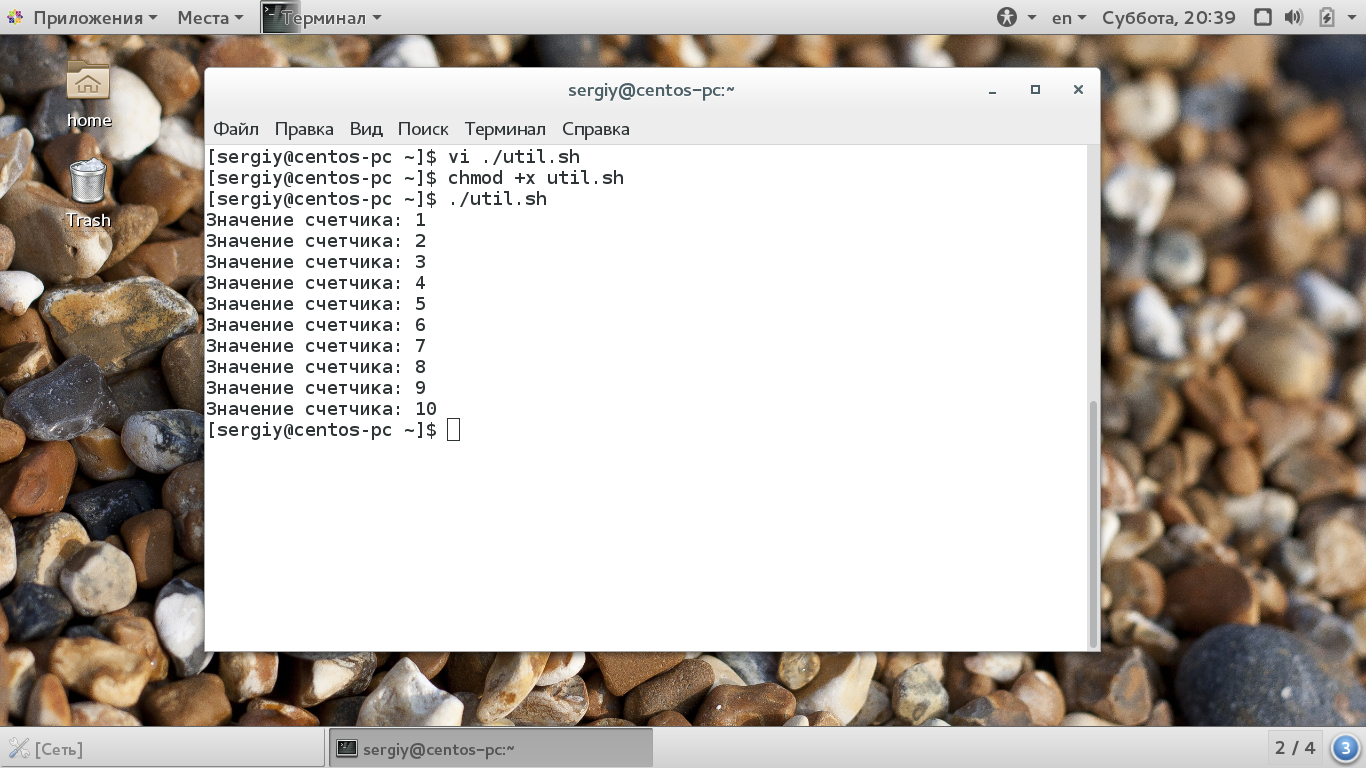
Using loops to repeat tasks in Bash
Functions
Functions structure code and avoid duplication.
#!/usr/bin/env bash

# Definition
print_time() {
    local message=$1
    echo "[$(date +%H:%M:%S)] $message"
}

# Call
print_time "Script started"
# ... your code ...
print_time "Script finished"
localcreates a variable visible only inside the function.- Functions return a status via
return(number 0-255) or output viaecho(string). To capture output, useresult=$(function_name).
Testing and Debugging
Test your script before using it in production:
- Run with different arguments, including edge cases (empty strings, non-existent files).
- Use
set -xat the start of the script or runbash -x script.shfor step-by-step command output. - Add
set -eto exit automatically on any command error andset -uto error on undefined variable use. - Check command return codes:
if ! command; then echo "Error"; fi.
Common Errors and Solutions
Permission denied: file is not executable. Solution:chmod +x script.sh.No such file or directoryon run: shebang issue. Use#!/usr/bin/env bashinstead of#!/bin/bash.- Syntax error in condition: check spaces in
[ ]— they are required:[ "$a" = "b" ], not["$a"="b"]. - Empty variables in conditions: always quote:
[ -n "$VAR" ]. - Lost arguments when calling a function: pass them explicitly:
my_func "$@". - Incorrect argument count:
$#counts arguments after shell processing. If a string with spaces is passed in quotes, it counts as one argument.
Next Steps
After mastering the basics, explore:
- Text processing with
grep,awk,sed. - Job scheduling with
cron. - Input/output stream handling (
<,>,>>,|). - Arrays and associative arrays in Bash.
- Debugging with
trapand signals.
These tools will expand your script's capabilities for complex administration tasks.