Introduction
Passwords are the keys to your digital accounts: from email and social media to banking and work tools. Losing access to passwords due to a system failure, device theft, or simply forgetting them can lead to serious problems. Backing up your passwords is a simple but critical step to protect your digital life. In this guide, you'll learn how to properly export, encrypt, and store password backups from browsers and password managers.
Requirements
Before you begin, make sure you have:
- Access to the computer or device where your passwords are stored.
- An installed browser (Chrome, Firefox, Edge, Safari) or password manager (KeePass, LastPass, etc.).
- External storage (USB flash drive, external hard drive) or access to an encrypted cloud storage service (e.g., Dropbox with two-factor authentication enabled).
- A file encryption utility (built-in OS tools or programs like 7-Zip, VeraCrypt).
💡 Tip: If you use a password manager with cloud synchronization (e.g., 1Password, LastPass), backups may be created automatically. However, it's recommended to have a local encrypted copy in case you lose access to the cloud.
Step 1: Determine Where Your Passwords Are Stored
First, you need to understand which tool you use to store passwords:
- Browsers: Chrome, Firefox, Edge, Safari provide built-in password managers. Passwords are stored encrypted, tied to your OS account or browser profile.
- Dedicated Password Managers: KeePass (local file), LastPass, 1Password (cloud synchronization).
Open your browser or manager's settings and find the "Passwords" or "Security" section. There you'll see a list of saved passwords and options to manage them.
Step 2: Export Passwords to a File
Most browsers and managers allow you to export passwords to a file (usually CSV or their proprietary format). The process varies slightly:
Password export option in Chrome
For Google Chrome:
- Open Chrome and go to
Settings(three dots in the top right) →Passwords(under "Autofill"). - Click the three dots next to "Saved Passwords" and select
Export passwords. - Confirm the action by entering your computer account password or using biometrics (if prompted). The file will be saved as
chrome_passwords.csv.
For Mozilla Firefox:
- Open the Firefox menu (three lines) →
Passwords(or typeabout:loginsin the address bar). - Click
Export Passwords...at the bottom of the window. - Save the file in CSV format (e.g.,
firefox_passwords.csv).
For Microsoft Edge:
Settings(three dots) →Profile→Passwords→Password settings.- Click
Export passwordsand confirm.
For Safari:
Safari→Preferences→Passwords.- Click
Export Passwords...and save assafari_passwords.csv.
⚠️ Important: Exported files contain passwords in plain text! Never store them unencrypted.
For KeePass Manager:
- Open your KeePass database.
File→Export→Export to CSV file...(or export to a KDBX database file for a full backup).- Save the password file.
Step 3: Encrypt the Backup File
After exporting, you have a file with passwords in plain text. It must be encrypted. There are several methods:
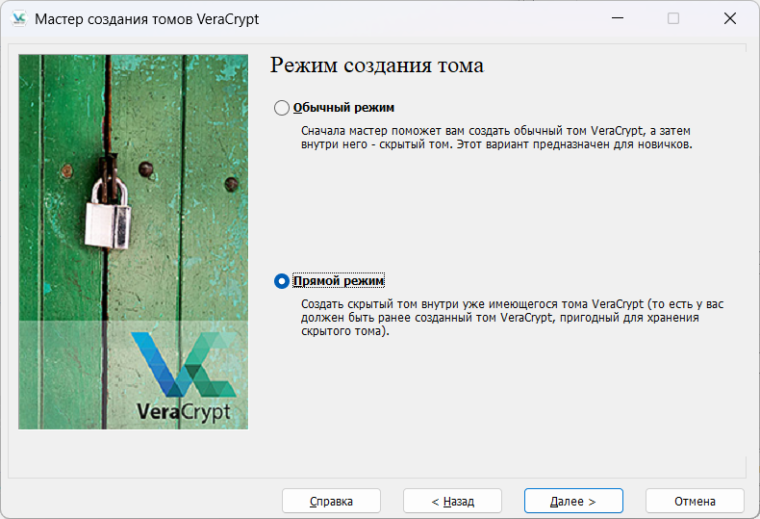
VeraCrypt volume creation wizard
Method 1: Use an Archiver with Encryption (e.g., 7-Zip)
- Install 7-Zip (if not already installed).
- Right-click the password file →
7-Zip→Add to archive.... - In the "Archive" field, specify a name (e.g.,
passwords_backup.7z). - In the "Encryption" section, enter a strong password (ideally 12+ characters, with letters, numbers, and special symbols). Be sure to check
Encrypt file names. - Click
OK. The archive will be password-protected.
Method 2: Use VeraCrypt (to Create an Encrypted Container)
- Install VeraCrypt.
- Create a new file container:
Create volume→Create a file container→ specify size and password. - Mount the container as a virtual drive and copy the password file into it.
- Dismount the container. The data is now protected.
Method 3: Use Built-in OS Tools
- Windows: Use BitLocker (available in Pro editions) to encrypt an entire drive. For encrypting individual files, 7-Zip or VeraCrypt are better, as the built-in EFS encryption is tied to your user account and not suitable for transferring between computers.
- macOS: Use FileVault to encrypt the disk or create an encrypted disk image via
Disk Utility. - Linux: Use LUKS to encrypt a partition or VeraCrypt for files.
💡 Tip: VeraCrypt or 7-Zip are preferable as they are cross-platform and OS-independent.
Step 4: Store the Backup in a Secure Location
Once encrypted, you have a protected file (archive or container). Now store it:
- On external storage: USB flash drive or external HDD. Keep it in a safe place (e.g., a safe). Make multiple copies on different media.
- In the cloud: Upload the encrypted file to cloud storage (Dropbox, Google Drive, OneDrive). Ensure you have two-factor authentication enabled on your cloud account.
- Do not store on your main computer's drive in plain text, even if encrypted. It's best to delete the original unencrypted file after creating the archive.
Step 5: Set Up Regular Backup Updates
Passwords change, new accounts are added. Your backup should stay current:
- Manually: Repeat steps 1–4 once a month (or more often). Delete the old encrypted copy and create a new one.
- Automatically: Some password managers (e.g., 1Password, LastPass) automatically synchronize and create cloud backups. For browsers, automation is trickier, but you could write a script that exports passwords, encrypts them, and copies the result to external storage or the cloud. However, this requires technical skill and may be insecure if the script temporarily stores passwords in plain text.
⚠️ Important: When you change your password manager's or browser's master password (e.g., your Windows account password used for encryption), ensure your password backup is still accessible. Sometimes, after changing the encryption password, old backups become inaccessible.
Verification
To ensure your backup works:
- On another device (or after resetting your current one), install the same browser or password manager.
- Import the password file (e.g., in Chrome:
Settings→Passwords→Import passwords). - If you encrypted the archive, decrypt it first using the same password.
- Check that all passwords imported correctly and try logging into several accounts.
If the import proceeds without errors and logins work, the backup was created successfully.
Potential Issues
Issue: Cannot export passwords
- Cause: The browser or manager requires confirmation via password or biometrics.
- Solution: Ensure you are logged into the browser/manager account and have administrator rights on the computer.
Issue: Backup file is corrupted or the archive password is lost
- Cause: Error during archive creation or forgotten password.
- Solution: Always verify archive integrity after creation. Store the archive password separately in a secure location (e.g., a physical safe or a password manager). Without the password, data recovery is impossible.
Issue: Password import fails on another device
- Cause: Format incompatibility (e.g., CSV from Chrome won't import into Firefox) or missing fields.
- Solution: Export passwords in a universal CSV format if supported. During import, manually map the columns.
Issue: Backup is outdated
- Cause: You forgot to update the backup after adding new passwords.
- Solution: Set a calendar reminder (e.g., monthly) and update the backup immediately after changing passwords.