Introduction / Why This Matters
Apps closing unexpectedly is one of the most common issues on Android. It typically occurs due to insufficient RAM, outdated system components, corrupted cache files, or conflicts with power-saving settings. By following this guide, you will restore stable app performance, prevent user data loss, and return your phone to its usual responsiveness.
Requirements / Preparation
Before you begin, ensure you have access to the device settings (unlock via PIN, pattern, or biometrics). Check the battery level (at least 20%) or connect the phone to a charger. This guide is compatible with Android 10 and newer, including Samsung One UI, Xiaomi HyperOS/MIUI, and stock Pixel UI.
Step 1: Reboot the Device
Screenshot of the Android power menu showing the restart option to fix crashing apps
A simple reboot clears the RAM and terminates stuck background processes that often cause hidden conflicts. Press and hold the power button, select "Restart," and wait for the system to fully boot up. Do not skip this step: it resolves up to 30% of spontaneous crashes.
Step 2: Update the App and Operating System
Developers regularly release patches that address vulnerabilities and fix bugs causing crashes. Open Google Play → Manage apps & device → Update all. Then, navigate to Settings → System → System update and install any available Android updates.
💡 Tip: If the update doesn't appear manually, disconnect from Wi-Fi and switch to mobile data. Sometimes, update servers require a network change to sync properly.
Step 3: Clear Cache and Data for the Problematic App

Android settings screen: app storage section with clear cache and clear data buttons
Accumulated temporary files may contain errors that prevent the app from launching. Go to Settings → Apps → select the crashing app. Tap "Storage & cache" → "Clear cache." If the issue persists, tap "Clear storage" or "Clear data" (make sure important data is synced to a cloud account beforehand).
Step 4: Free Up Internal Storage
Android requires at least 10–15% of free space for virtual memory and system operations to function correctly. Navigate to Settings → Storage → Free up space. Delete duplicate photos, old downloads, or unused apps. If necessary, move media files to the cloud or an SD card.
Step 5: Disable Aggressive Battery Optimization
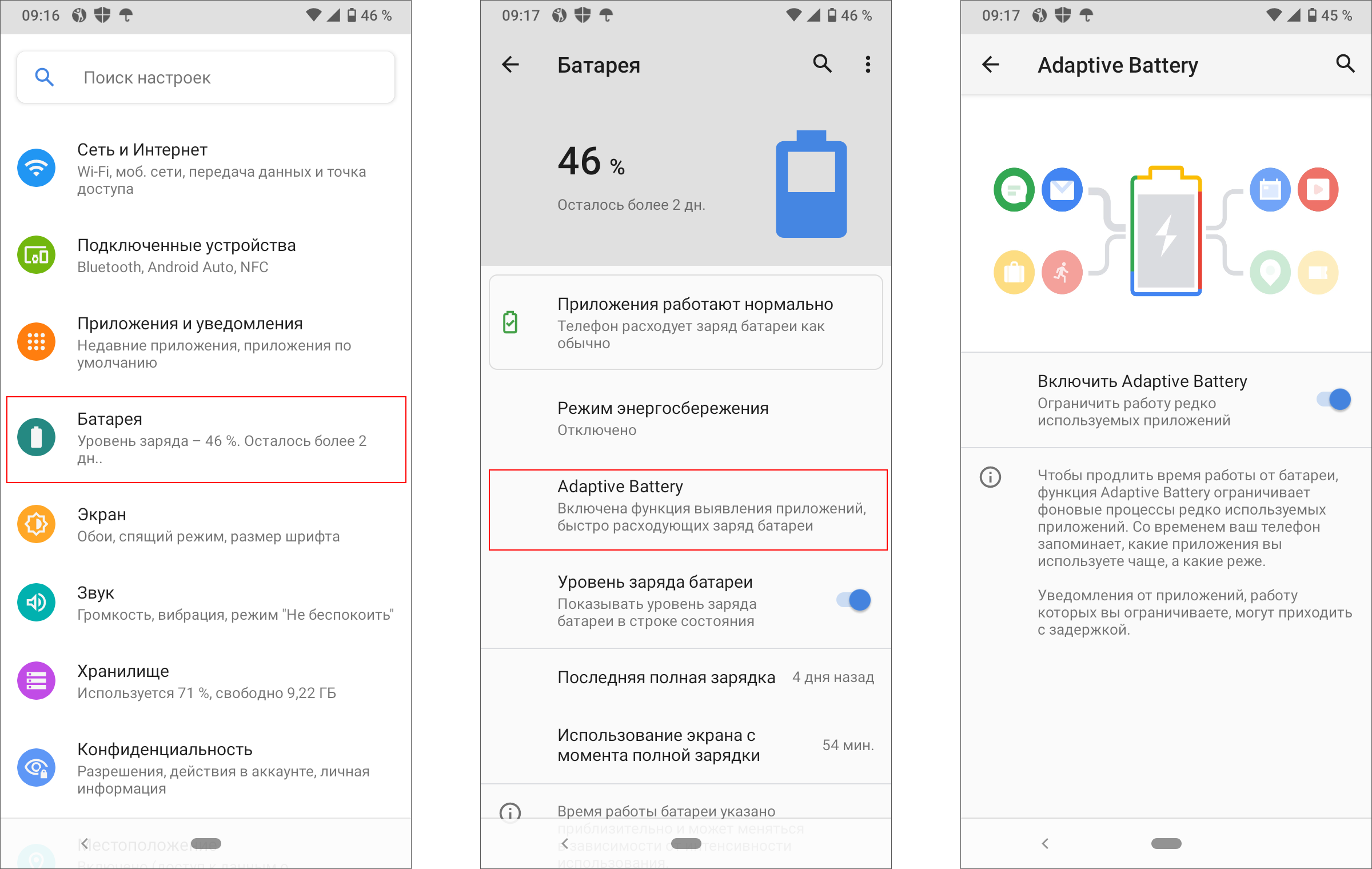
Android battery optimization settings showing apps exempted from restrictions for stable performance
Power-saving systems forcibly terminate background processes, which often causes instant crashes when switching between tasks. Go to Settings → Battery → Battery optimization (or App management). Find the problematic app and set it to "Don't optimize" or "Unrestricted."
Verifying the Fix
After completing the steps, open the app that was previously closing on its own. Try to reproduce the action that triggered the error (e.g., loading a video, navigating to a complex section, or running in the background). If the app launches stably, runs without lag, and no longer kicks you back to the home screen, the issue is resolved.
Potential Issues
You may encounter a few nuances during setup. If clearing data reset your in-app settings, simply log back into your account—modern services will automatically restore your progress from the cloud. If you see an "App not installed" or "Insufficient storage" error, ensure storage access isn't disabled: Settings → Apps → Special app access → All files access. In rare cases, crashes are caused by conflicting mods or third-party launchers—temporarily revert to the default launcher and uninstall any modified app versions.