What Does Error 0x80070005 Mean
The error code 0x80070005 during a Windows update corresponds to the system code ACCESS_DENIED. It indicates that the process responsible for downloading and installing updates (typically the Windows Update service or TrustedInstaller) lacks sufficient permissions to access critical system resources.
The error may appear in the Windows Update Center (Settings -> Update & Security) or be logged in the Windows Event Viewer (Event Viewer -> Applications and Services Logs -> Microsoft -> Windows -> WindowsUpdateClient). Although the wording may vary, the key elements are 0x80070005 or ERROR_ACCESS_DENIED.
Typical symptoms:
- The Update Center reports an error during checking or installation.
- Updates get stuck during the download or installation phase.
- Manually installing
.msu/.msppackages via PowerShell or Command Prompt yields the same code.
Screenshot of the Windows Update Center showing error 0x80070005 ACCESS_DENIED
Causes
The causes are specific and technical, related to system integrity or permission issues:
- Corrupted system images. Windows image files (
WinSxS) or DISM components are damaged, blocking the installer's actions. - Incorrect Access Permissions (ACL). The standard Access Control Lists (ACL) for folders like
C:\Windows\WinSxS,C:\Windows\SoftwareDistribution, or update-related registry keys are misconfigured. - Third-party software conflict. Antivirus programs, system "optimizers," or faulty drivers may block the
TrustedInstaller.exeservice from accessing system resources. - Corrupted Windows Update database. Files in the
SoftwareDistributionfolder are in an inconsistent state due to a previously interrupted installation. - Virus/miner infection. Malware may modify access permissions or block system services.
Technical diagram of Windows Update components, including TrustedInstaller.exe
Solutions
Methods are presented from simplest and fastest to more complex. Start with the first.
Method 1: Repair System Files (SFC and DISM)
This is the most common and effective solution. Commands are run in PowerShell or Command Prompt as Administrator.
- SFC (System File Checker):
sfc /scannow
The process may take 10-20 minutes. After completion, restart your PC, even if SFC found no violations. - DISM (Deployment Image Servicing and Management):
DISM /Online /Cleanup-Image /RestoreHealth
This tool uses the Windows Update service to download repair files. Ensure your internet connection is stable. After completion, restart your computer.
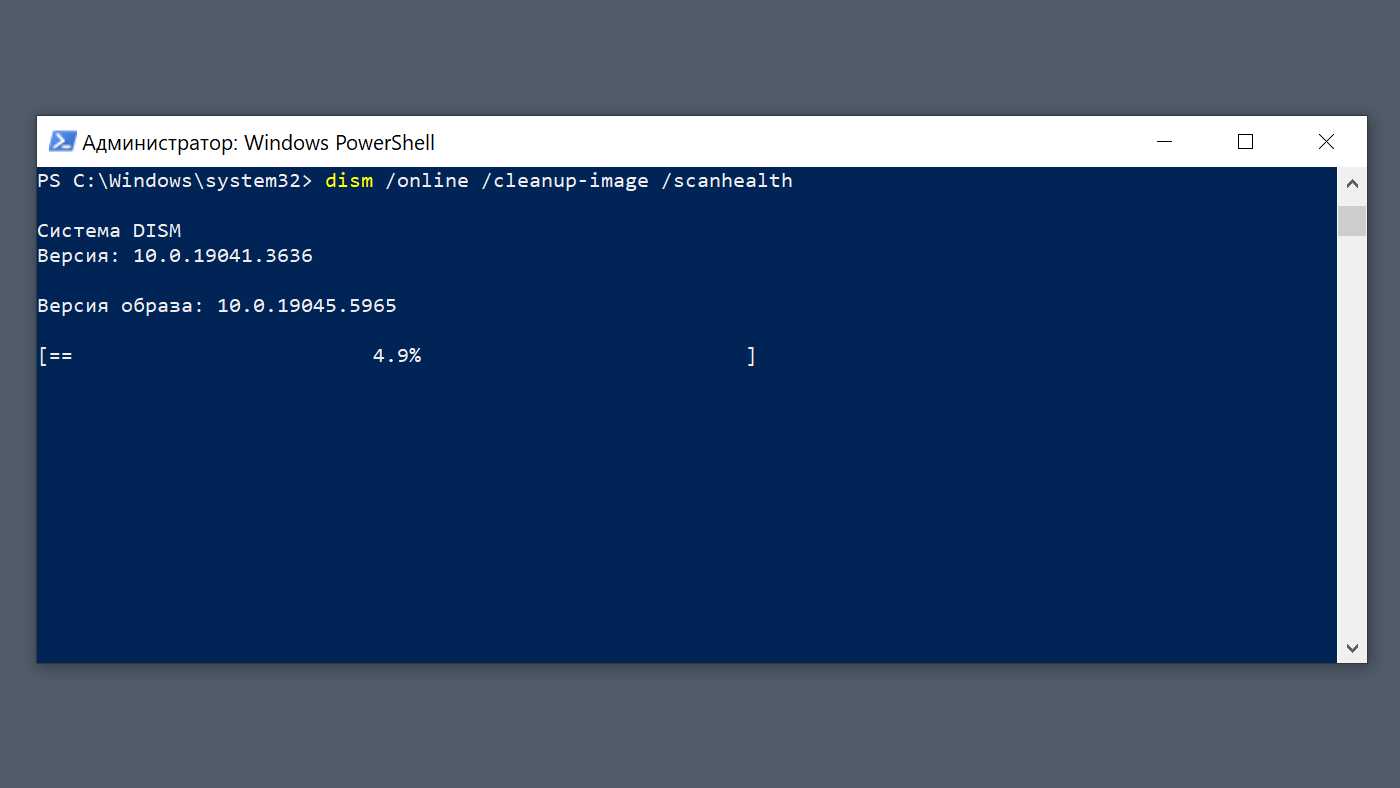
Administrator PowerShell window with completed SFC and DISM commands
Method 2: Full Reset of Windows Update Components
This method forcibly clears the cache and resets service states.
- Stop related services:
net stop wuauserv net stop cryptSvc net stop bits net stop msiserver - Rename the cache folders (this is safe; the system will recreate them):
ren C:\Windows\SoftwareDistribution SoftwareDistribution.old ren C:\Windows\System32\catroot2 Catroot2.old - Start the services again:
net start wuauserv net start cryptSvc net start bits net start msiserver - Restart the computer and try checking for updates.
Method 3: Manually Fix Permissions for the WinSxS Folder
If the previous steps didn't help, the issue might be with misconfigured ACLs on the most vulnerable folder — WinSxS.
- Open PowerShell as Administrator.
- Run the command to reset folder permissions to Windows defaults:
icacls C:\Windows\WinSxS /reset /T /C/reset— replaces ACLs with default permissions for each file./T— applies to all subfolders and files./C— continues on errors (e.g., access to protected files).
- The process may take several minutes. After completion, restart the system.
Method 4: Clean Boot and Disable Antivirus
Temporarily disabling third-party antivirus/firewall (including "Windows Defender Firewall" for testing) and booting Windows in Clean Boot mode helps rule out software conflicts.
- Press
Win + R, typemsconfig. - Go to the Services tab, check "Hide all Microsoft services", click "Disable all".
- Go to the Startup tab, open Task Manager and disable all items.
- Click OK and restart your PC.
- Try installing updates. If the problem disappears — the culprit is in startup items or services. Re-enable them in groups to identify the conflicting component.
Prevention
- Do not disable system services manually, especially
TrustedInstallerandWindows Update. - Avoid system "optimizers" that "speed up" Windows by modifying system permissions.
- Always shut down Windows properly (Start -> Shut down), not via the power button. This prevents corruption of the update database.
- Regularly create system restore points before installing major updates or software.