What Does the VIDEO_DXGKRNL_FATAL_ERROR Mean
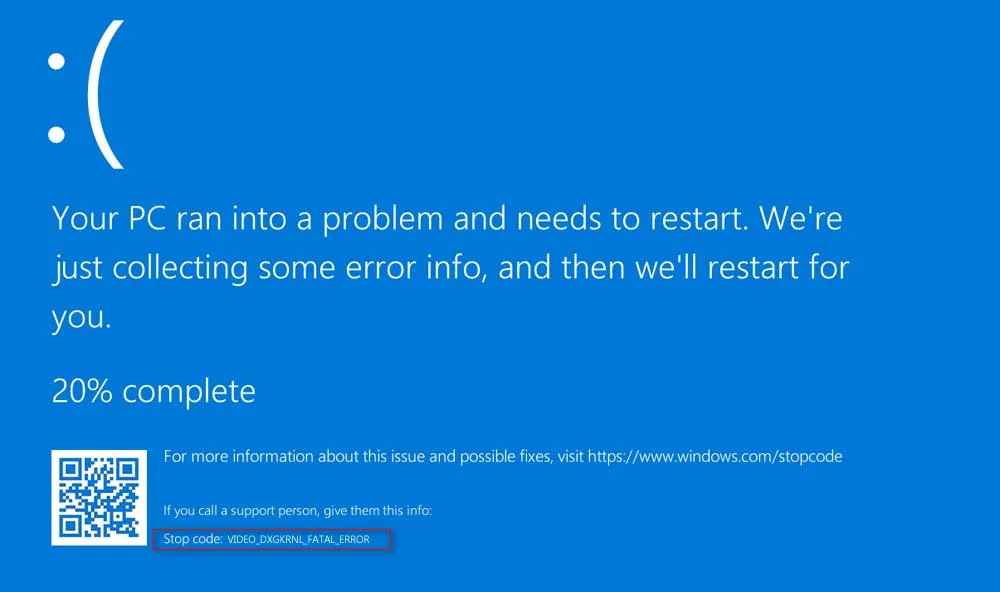
Blue Screen of Death with the VIDEO_DXGKRNL_FATAL_ERROR code
The VIDEO_DXGKRNL_FATAL_ERROR (stop code 0x00000133) is a critical failure of the dxgkrnl.sys driver (Microsoft DirectX Graphics Kernel). This system driver is responsible for low-level graphics card management, scheduling of graphics tasks, and interaction with DirectX.
The error triggers a Blue Screen of Death (BSOD), most commonly:
- During startup or while running games/graphically intensive applications.
- When turning a monitor on/off or changing screen resolution.
- Randomly, during system idle (rarely).
The full message on the blue screen typically contains:
STOP code: 0x00000133 (VIDEO_DXGKRNL_FATAL_ERROR)
Failed to find the specified module: dxgkrnl.sys
Or it points to a specific fault address within that file.
Causes
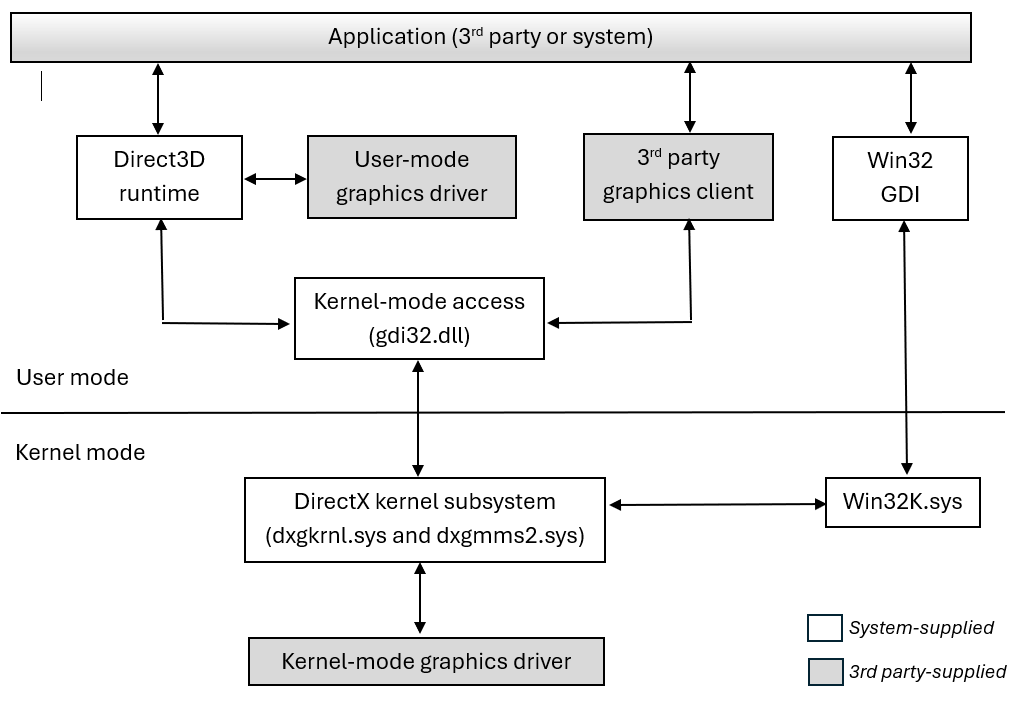
Windows Display Driver Model architecture and the role of dxgkrnl.sys
The error occurs due to a critical failure in the graphics driver's operation or its interaction with the system. Main causes:
- Outdated, corrupted, or incompatible graphics card drivers. The most frequent cause. This can be old versions or raw beta drivers.
- Conflict with other system or third-party software. Antivirus software (especially with "gaming protection" features), GPU overclocking utilities (MSI Afterburner, ASUS GPU Tweak), video recording programs (OBS, ShadowPlay), or even some games can inject their own DLLs into the graphics pipeline and cause a conflict.
- Corruption or outdated Windows system files. DirectX, C++ Redistributable files, or
dxgkrnl.sysitself may be damaged. - Insufficient RAM or physical memory errors. If the driver attempts to access a corrupted memory region.
- Hardware issues with the graphics card. Overheating, failure of video memory (VRAM), or the GPU itself (less common but possible).
- Incompatible power settings. Aggressive power-saving settings in Windows or BIOS/UEFI can cause GPU instability.
Solutions
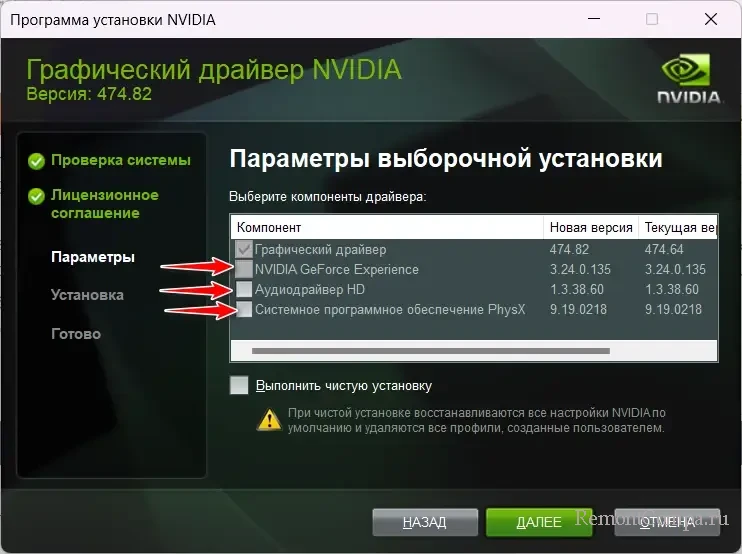
The 'Perform a clean installation' option in the NVIDIA driver installer
It is recommended to perform the solutions in the presented order, starting with the simplest and most probable.
Solution 1: Clean Reinstall of Graphics Card Drivers
This is the first and most effective action. Not just an update, but a complete cleanup of the old version.
- Download the latest stable version of the driver for your graphics card (NVIDIA/AMD/Intel) from the official website.
- Boot into Safe Mode (hold Shift while clicking "Restart" in the Start menu → Troubleshoot → Advanced options → Startup Settings → Restart → F4).
- In Safe Mode, run the Display Driver Uninstaller (DDU) utility. Select "Clean and restart (recommended)" in the settings. This will completely remove all traces of the driver from the system.
- After rebooting into normal mode, install the downloaded driver, making sure to select the 'Perform a clean installation' option (NVIDIA) or its equivalent.
- Restart the computer.
💡 Tip: If the problem started after a driver update, download and install the previous stable version (e.g., from TechPowerUp or NVIDIA/AMD archives).
Solution 2: Check RAM
The dxgkrnl.sys file actively works with memory. Memory errors lead to crashes.
- Press
Win + R, typemdsched.exe, and press Enter. - Select "Restart now and check for problems".
- The computer will restart and begin an extended memory check (takes 15-40 minutes).
- After booting, check the report in Event Viewer → Windows Logs → System, looking for an event from
MemoryDiagnostics-Results. - If errors are found — you need to replace the RAM modules.
Solution 3: Repair System Files and Components
Corruption of DirectX or C++ system libraries can cause a driver failure.
- Open Command Prompt or PowerShell as Administrator.
- Run the following commands sequentially:
The first command checks and repairs protected system files. The second fixes the Windows image.sfc /scannow DISM /Online /Cleanup-Image /RestoreHealth - Restart the computer after both operations complete.
Solution 4: Disable Conflicting Software and Check with Clean Boot
Some programs interfere with the graphics stack.
- Press
Win + R, typemsconfig, and open the Services tab. - Check "Hide all Microsoft services", then click "Disable all".
- Go to the Startup tab and open Task Manager. Disable all startup items, especially:
- Overclocking and monitoring utilities (Afterburner, GPU Tweak, RivaTuner).
- Recording/streaming programs (OBS, Discord Overlay, NVIDIA Share/GeForce Experience Overlay).
- Third-party antivirus software (temporarily disable or uninstall).
- Click "OK" and restart.
- If the error disappears — re-enable services/startup items in groups to find the culprit.
Solution 5: Check Temperatures and System Stability
Overheating or unstable overclocking (including XMP/DOCP in BIOS) can cause artifacts and driver-level crashes.
- Download and run the HWiNFO64 utility in "Sensors-only" mode.
- Start a stress test with FurMark or Heaven Benchmark.
- For 5-10 minutes, monitor temperatures:
- GPU (core): not more than 85-90°C for modern cards (check your specific model's specs).
- GPU (memory): not more than 95-100°C.
- CPU: not more than 90-95°C.
- If temperatures exceed norms — clean the cooling system of dust, check fan operation, and reapply thermal paste.
- If the system is not overclocked but the test fails with an error — there may be a hardware stability issue. Try temporarily disabling XMP/DOCP in BIOS/UEFI and check stability.
Prevention
To minimize the risk of the error recurring:
- Update graphics card drivers only from official websites and prefer "stable" (Game Ready / Adrenalin Edition) versions over beta channels.
- Do not install "universal" drivers from third-party sites or via "driver booster" utilities.
- Regularly check the cleanliness of your cooling system and component temperatures, especially before long gaming sessions.
- When installing new software (especially antiviruses, recording utilities) pay close attention to whether it offers to install its own "filters" or "drivers" for graphics.
- Create a system restore point before important driver or software updates.