What Error 5 Means
Error 5 in Windows is the system code ERROR_ACCESS_DENIED, which means "Access is denied." The system blocks an operation because the current user or process lacks the necessary permissions. The full error text is: "Error 5: Access is denied."
The error occurs in typical scenarios:
- Launching or installing programs.
- Copying, moving, or deleting files and folders.
- Accessing network resources or printers.
- Changing system settings or the registry.
The code indicates a security issue and requires checking permissions or protection settings.
Causes
The following specific causes trigger Error 5:
- Insufficient user privileges — the account is not part of the Administrators group or lacks explicit permissions on the object.
- File locked by another process — the file or folder is in use by the system, an antivirus, or another program.
- Antivirus or firewall interference — security software mistakenly blocks the operation as a potential threat.
- Corrupted system files — components responsible for access control are damaged.
- Overly strict UAC settings — User Account Control prevents operations requiring elevated privileges.
- Group policies or corporate restrictions — in networked environments, an administrator may limit access.
- Incorrect permissions on the object — even an administrator will be denied if the file or folder has explicitly restricted permissions.
Solutions
To fix Error 5 in Windows, perform the following actions in the specified order. Start with the simplest methods and move to more complex ones only if previous steps didn't help.
Solution 1: Run as Administrator
If the error occurs when launching a program, use elevated privileges.
- Locate the program's executable file (.exe) or shortcut.
- Right-click on it.
- Select "Run as administrator" from the context menu.
- If a UAC prompt appears, click "Yes."
This method solves the problem if the cause is insufficient privileges for the current user. If the error is related to a specific file or system setting, proceed to the next solutions.
Solution 2: Check and Modify Permissions
If the error occurs when working with a specific file or folder, configure the permissions.
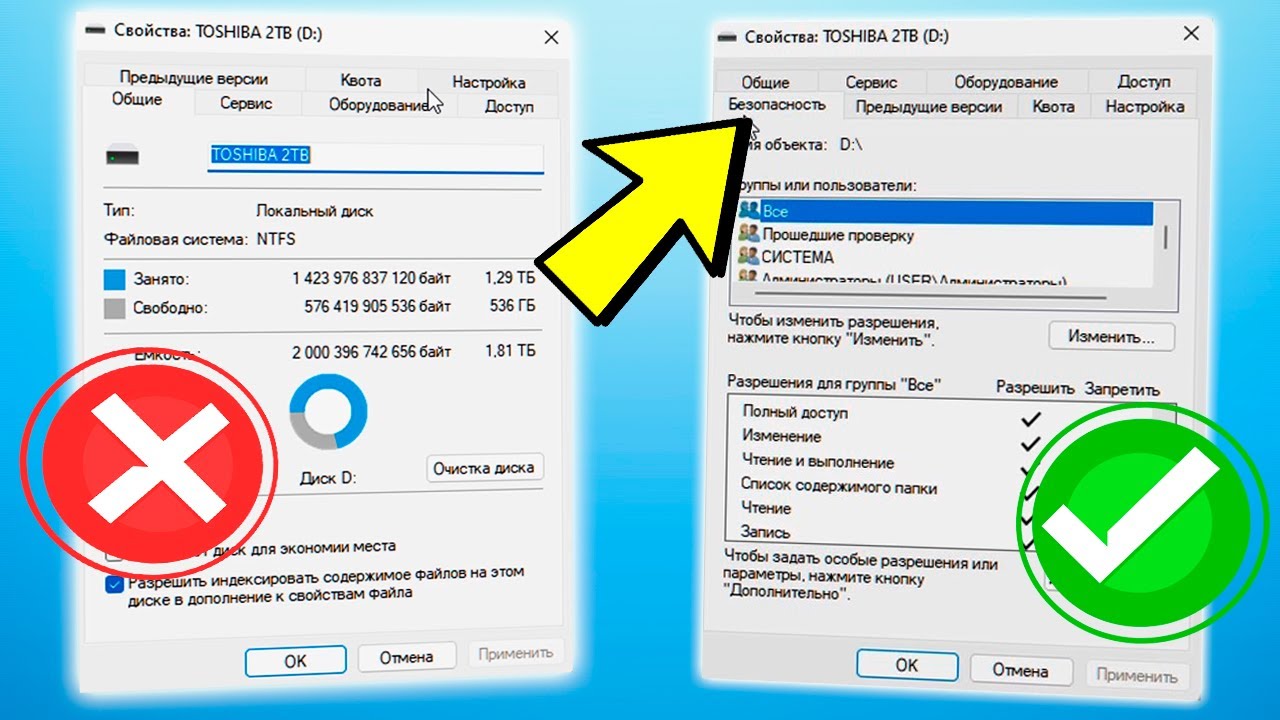
Configuring permissions via the Security tab
- Right-click the problematic file or folder.
- Select "Properties" → "Security" tab.
- Click "Edit" (or "Advanced" for advanced settings).
- In the "Group or user names" list, find your account. If it's not there, click "Add," enter the username, click "Check Names" → "OK."
- Select the account and set the necessary permissions: for full access, check "Full control"; for reading, check "Read & execute" and "Read."
- Click "Apply" and "OK" in all windows.
- Repeat the operation that caused the error.
⚠️ Important: Do not modify permissions for system files and built-in accounts (e.g., SYSTEM) unless you are sure of your actions. This can disrupt Windows functionality.
Solution 3: Temporarily Disable Antivirus and Firewall
Security software may block access erroneously.
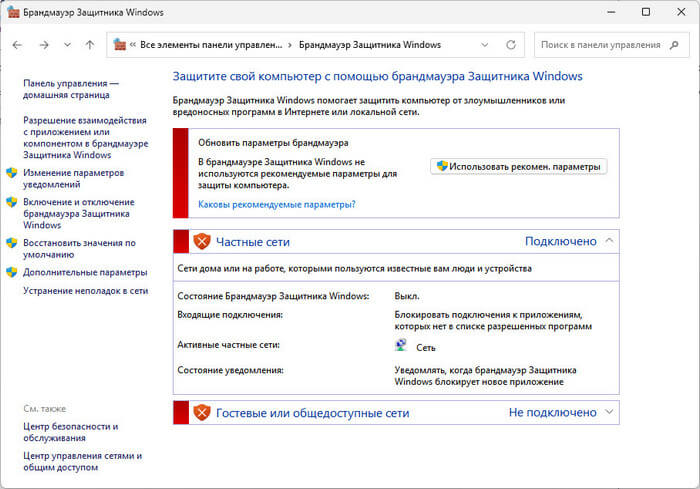
Turning Windows Defender Firewall on and off
- Disable the antivirus:
- Open the antivirus interface (via the system tray icon).
- Find "Real-time protection" or a similar option.
- Temporarily disable all components (for 10–15 minutes).
- Disable the Windows Firewall:
- Open "Control Panel" → "Windows Defender Firewall."
- Select "Turn Windows Defender Firewall on or off."
- Disable the firewall for private and public networks → "OK."
- Check if the error is resolved.
- Re-enable the antivirus and firewall.
- If the problem is solved, configure exclusions in the antivirus for the program or folder.
Solution 4: Repair System Files with SFC and DISM
Corrupted system files can disrupt security mechanisms.
- Open the Start menu, type "cmd."
- Right-click "Command Prompt" → "Run as administrator."
- Run the command:
The process will take 10–20 minutes.sfc /scannow - After completion, run:
Ensure the computer is connected to the internet to download source files.DISM /Online /Cleanup-Image /RestoreHealth - Restart the PC and check if the error is resolved.
Solution 5: Configure or Temporarily Lower UAC
Overly strict User Account Control can block operations.
- Open "Control Panel" → "User Accounts" → "Change User Account Control settings."
- The slider determines notification levels:
- "Always notify" — maximum security.
- "Notify me only when apps try to make changes to my computer" — recommended.
- "Never notify" — minimum security (temporary for testing).
- For testing, set to "Never notify" → "OK."
- Restart the computer and check if the error disappears.
- If the problem is solved, revert to an intermediate level or configure exclusions for specific programs. Do not leave UAC disabled permanently.
Solution 6: Scan for Malware
Malicious programs often change access permissions or block system functions.
- Launch your antivirus software and perform a full system scan (not a quick scan).
- Additionally, use specialized utilities like Malwarebytes (free version) to detect potentially unwanted programs.
- After cleaning, restart the computer and check if the error persists.
Prevention
To minimize the risk of Error 5 in the future:
- Use a standard account for daily tasks — reserve the administrator account for installing software and changing system settings.
- Regularly update Windows and your antivirus — updates patch security vulnerabilities.
- Configure permissions consciously — grant only the minimum necessary permissions. Avoid "Full control" for all users.
- Do not disable UAC completely — adjust the level or configure exclusions instead of disabling it entirely.
- Create restore points before making significant changes (installing software, editing the registry).
- Do not run unknown programs as an administrator — this can lead to permission changes by malware.
Following these recommendations will help not only fix the current Error 5 but also prevent its recurrence.