What Error 1068 Means
Error 1068 (full text: "The dependency service does not exist or has been marked for deletion") occurs in Windows when the system cannot start a service because one or more services it depends on are missing or unavailable.
Typical scenarios for appearance:
- When attempting to start a service in the
services.mscsnap-in. - During installation or startup of programs that require background services (SQL Server, VMware, antiviruses).
- In the Windows Event Viewer (Event Viewer) under the System log with the source Service Control Manager.
- When connecting new hardware (printer, network card) whose driver requires a background service.
Causes
Error 1068 is almost always a configuration problem in the Windows registry or corruption of system components. Main causes:
- A dependent service is disabled or removed. The most frequent cause. For example, the "Remote Access Routing" service depends on the "Automatic Updates" service. If the latter is disabled, the former will fail to start with error 1068.
- Corruption of dependency entries in the registry. Keys like
HKLM\SYSTEM\CurrentControlSet\Services\<Service_Name>\DependOnServiceorDependOnGroupmay be empty, contain incorrect service names, or be corrupted. - Corruption of system files. Files like
services.exeor libraries associated with service management are damaged. - Conflict after software removal. Incomplete uninstallation of a program left registry entries for dependent services that no longer exist.
- Corruption of the Windows image. System components responsible for processing dependencies are malfunctioning.
Method 1: Check and Manually Start Dependent Services
This is the fastest and safest first step. You need to find out which specific service is the dependency.
- Open Task Manager (Ctrl+Shift+Esc) → Services tab. Find the service that fails to start. Note its name (e.g.,
wuauserv). - Press Win + R, type
services.msc, and press Enter. - Find the service that won't start in the list. Open its Properties.
- Go to the Dependencies tab. You will see two lists:
- This service depends on the following components: (bottom list) — services that must be running before this one.
- The following components depend on this service: (top list) — services that depend on this one.
- Action: Check each service from the list "This service depends on..." (bottom list):
- Ensure the "Status" column for each shows "Running".
- If a service is stopped, try to start it manually (click the Start button).
- If the service's startup type is "Disabled", change it to "Manual" or "Automatic" and try to start it.
💡 Tip: The problematic service is often "Windows Driver Foundation" (Driver Framework) or "Remote Access Routing". Check their status.
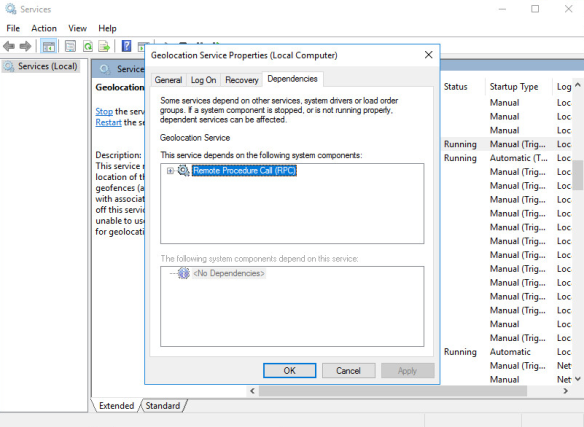
The 'Dependencies' tab in the properties of a Windows service in the services.msc snap-in
Method 2: Restore System Files (SFC and DISM)
Corruption of system components that manage services can cause error 1068. Let's restore them.
- Open Command Prompt (cmd) or PowerShell as an administrator.
- Run the command to check and restore the integrity of protected system files:
The process will take 10-20 minutes. Wait for it to complete. If SFC found and fixed files, restart your computer and check if the problem is resolved.sfc /scannow - If SFC didn't help or reported it couldn't fix files, perform a deeper system image restore using DISM:
After completion, runDISM /Online /Cleanup-Image /RestoreHealthsfc /scannowagain and restart your PC.
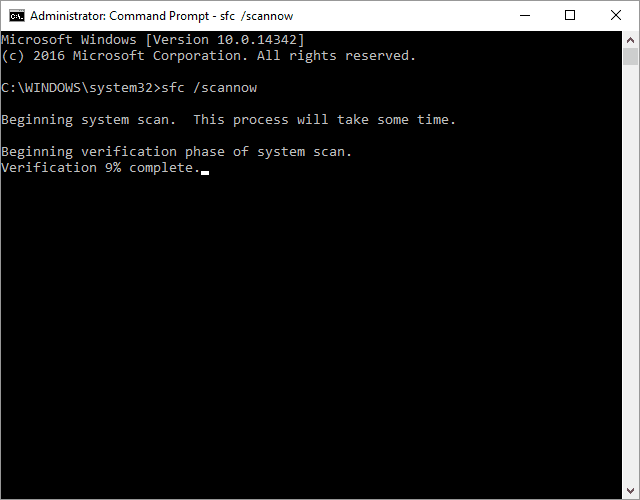
Running the sfc /scannow command in an administrative Command Prompt
Method 3: Manually Fix Dependency Entries in the Registry
Caution! Editing the registry is dangerous. Create a system restore point (systempropertiesprotection) or export the key you will modify before making changes.
- Press Win + R, type
regedit, press Enter. - Navigate to the path, replacing
<Service_Name>with the name of the problematic service (e.g.,Spoolerfor the Print Spooler):HKEY_LOCAL_MACHINE\SYSTEM\CurrentControlSet\Services\<Service_Name> - In the right pane, find the
DependOnServicevalue (type REG_MULTI_SZ). Double-click to edit. - In the window that opens, you will see a list of service names this service depends on. Each name is on a new line.
- Check the names for accuracy. They must exactly match service names in the system (you can verify in
services.msc). - Remove empty lines or junk entries.
- If the list is empty but the service should depend on something (e.g.,
RpcSs), add the correct names.
- Check the names for accuracy. They must exactly match service names in the system (you can verify in
- Also check the
DependOnGroupvalue (if present). Usually, it should be empty or containPlugPlayfor hardware-related services. - Click OK, close the Registry Editor, and restart your computer.
Method 4: Completely Reinstall the Problematic Software/Driver
If error 1068 occurs for a service related to a specific application (e.g., MySQL, OracleServiceXE, VMware NAT Service), the problem is likely with its installation.
- Completely uninstall the problematic software via Control Panel → Programs and Features or Windows Settings → Apps.
- After uninstallation, restart your computer.
- Download the latest stable version of the driver/software from the official vendor website.
- Install the program as an administrator (right-click → "Run as administrator").
- During installation, ensure you select a full installation of all components, including services.
- After installation, restart the system again and check if the service starts.
Prevention
- Do not disable core Windows services, especially those listed as dependencies for other services. Use the "Manual" startup type if you are unsure.
- Install software and drivers only from official sources and those compatible with your version of Windows.
- Create a system restore point before installing major updates, drivers, or programs.
- Regularly run
sfc /scannow(once a month) to maintain system file integrity. - When uninstalling programs, use the official uninstallers to ensure the system correctly removes associated services and registry entries.