Certificate Date Error in Windows
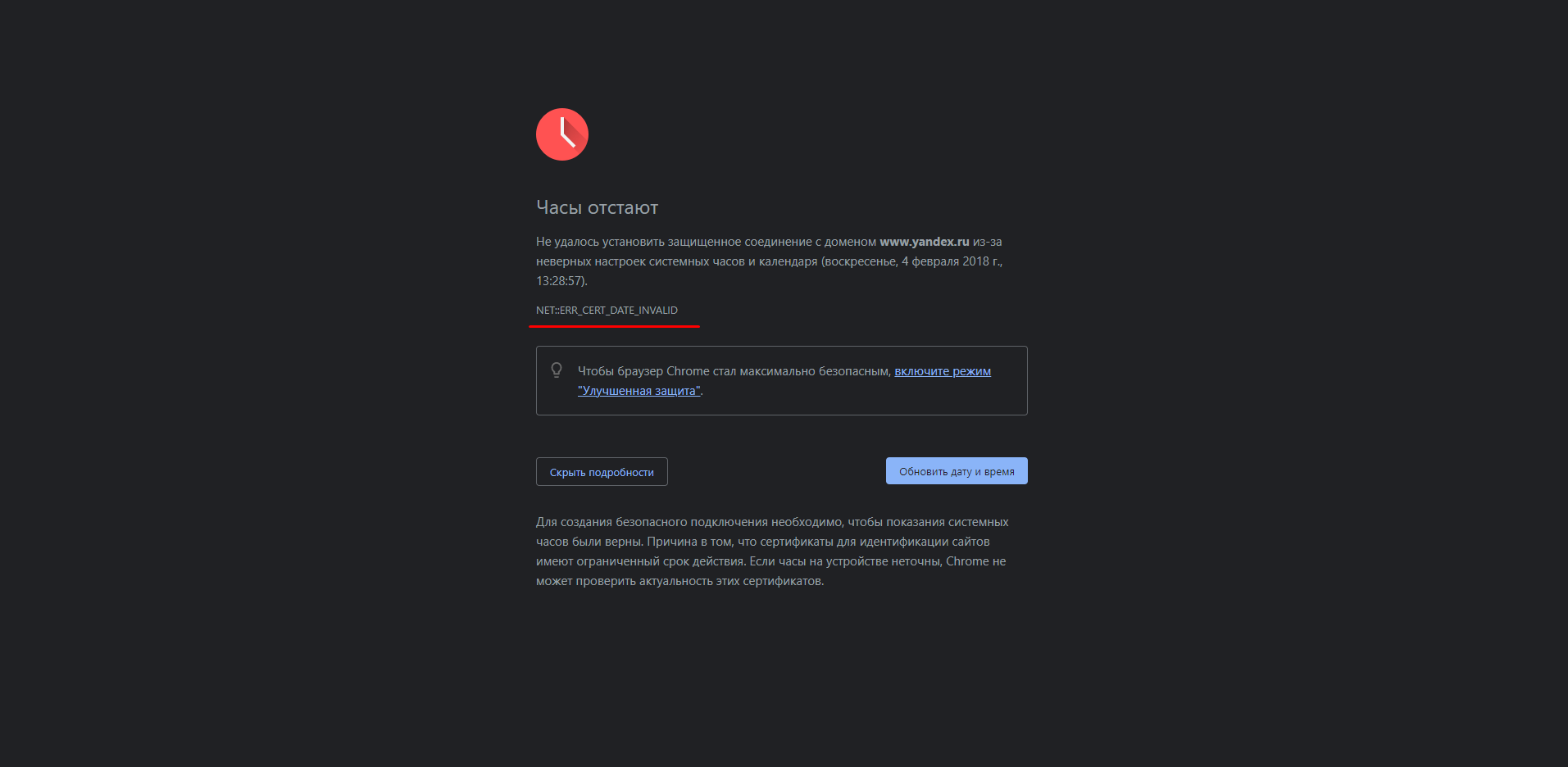
Typical error message in the Chrome browser
The "Certificate: The certificate is not valid" error (code 0x80092004 or CERT_E_EXPIRED) occurs when Windows detects that the current system time does not fall within the validity period of an SSL/TLS certificate. This can be due to an expired certificate, an inactive (future) validity period, or incorrect time settings on the computer. The issue appears in browsers (Chrome, Edge) and applications using encrypted connections, blocking access to websites.
Main Causes
- The system time significantly deviates from real time. The clock is fast or slow by more than a few minutes.
- A root or intermediate certificate in the Windows certificate store is expired.
- The certificate store is corrupted or contains invalid entries.
- Antivirus software with HTTPS scanning intercepts certificates with its own, and its certificate has expired.
- A corporate proxy or VPN uses a self-signed or expired certificate.
Checking and Correcting System Time
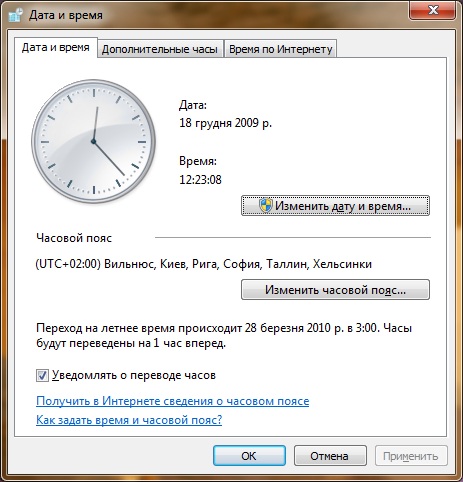
Configuring time synchronization with the time.windows.com server
Incorrect time is the most common cause. Fix it first.
- Open Control Panel → Clock and Region → Date and Time.
- On the Date and Time tab, check the readings. Manually set the correct values if necessary.
- Go to the Internet Time tab, click "Change settings".
- Ensure the checkbox "Synchronize with an Internet time server" is checked and the server
time.windows.comis specified. Click "Update now" → "OK". - To force synchronization, open the command prompt as an administrator and run:
w32tm /resync - Restart your computer and check if the error has disappeared.
Updating Windows Root Certificates
Root certificates are updated via Windows Update, but updates may be missed.
- Open Windows Settings (Win + I) → Update & Security → Windows Update.
- Click "Check for updates" and install all available updates, especially cumulative ones. They often include root certificate updates.
- Alternatively, use the command prompt as an administrator:
The first command downloads updated certificates, the second adds them to the store, and the third deletes the temporary file.certutil -generateSSTFromWU roots.sst certutil -addstore -f root roots.sst del roots.sst - Restart your browser.
Checking and Cleaning the Certificate Store
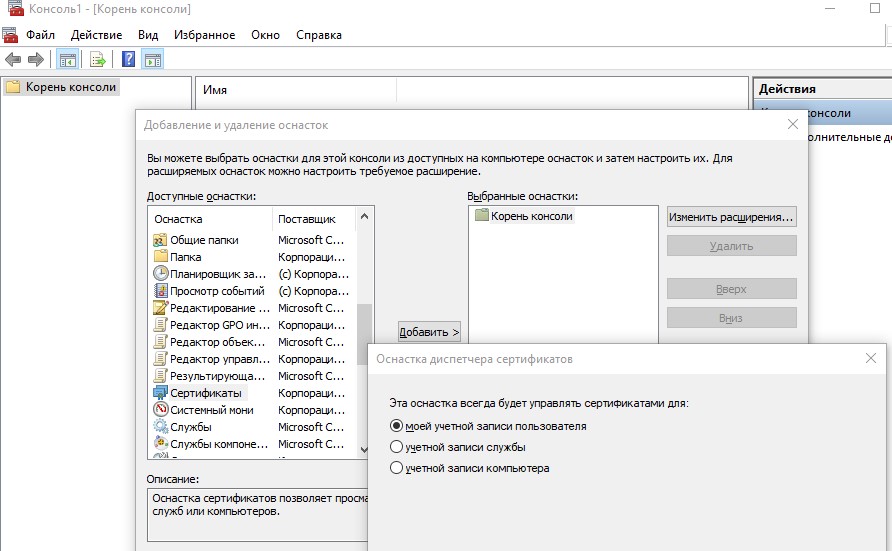
Removing expired certificates from the Trusted Root Certification Authorities store
A corrupted store may contain expired entries.
- Launch certmgr.msc via the Run menu (Win + R). For the system store, use certlm.msc (requires administrator privileges).
- In the snap-in, expand "Certificates - Current User" → "Trusted Root Certification Authorities" → "Certificates".
- Sort by the "Expiration Date" column and find certificates with an expired date.
- Delete all expired ones (right-click → "Delete"). Do not delete certificates with a future start date—they will become active later.
- After cleaning, download fresh root certificates as in the previous step.
Checking Antivirus and Firewall
Antivirus software with HTTPS inspection intercepts site certificates with its own. If its certificate is expired, the error occurs.
- Temporarily disable your antivirus (via the tray icon or settings). Disabling is not required for the built-in Windows Defender.
- Restart your browser and try to open the site.
- If the error disappears, the problem is the antivirus:
- Update your antivirus to the latest version.
- In settings, find the "HTTPS scanning", "SSL inspection", or "Encrypted traffic scanning" section and disable it. For a permanent solution, add the problematic site to exclusions.
- If you use a third-party firewall, check its SSL inspection settings.
Checking Proxy Server and VPN
In corporate networks or when using corporate VPN, a proxy with its own certificate is often used.
- Determine if a proxy is in use. In the browser: Settings → System → Open proxy settings. Or in the command prompt:
netsh winhttp show proxy - If a proxy is active, request the current Certificate Authority certificate for this proxy from your system administrator.
- Import the certificate:
- Double-click the
.crtor.cerfile. - Click "Install Certificate" → "Local Machine" → "Yes" to confirm UAC.
- Select "Place all certificates in the following store" → "Trusted Root Certification Authorities".
- Double-click the
- Restart your browser.
If the Problem Persists
- Check if any third-party root certificates with an expired validity period are installed. Remove them via
certmgr.msc. - Create a new Windows user account and check if the error occurs under that account. If not, the problem is in the current user's profile.
- As a last resort, perform a system file repair:
sfc /scannow
dism /online /cleanup-image /restorehealth
Prevention
Enable automatic time synchronization. Install Windows updates regularly, especially cumulative ones. Monitor the expiration dates of corporate proxy certificates. Do not install unknown root certificates from untrusted sources.