What Does Error 0x80072efd Mean
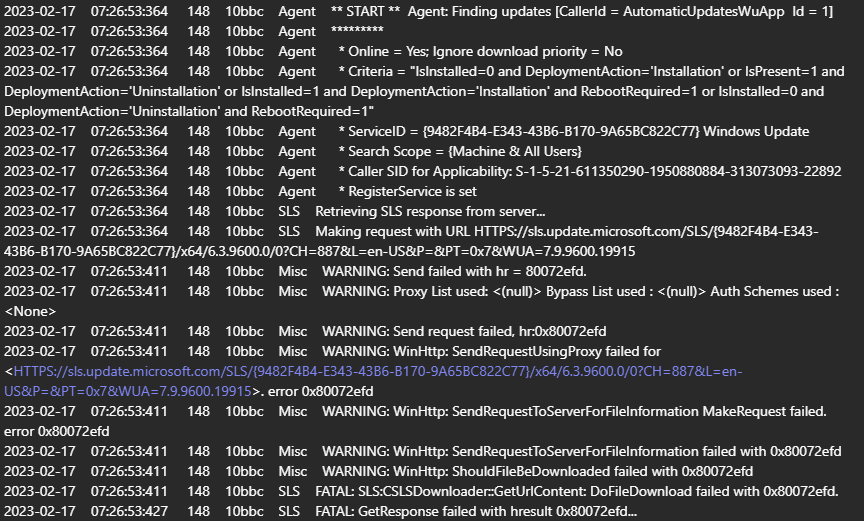
Windows Update window showing error 0x80072efd when checking for updates
Error 0x80072efd appears when Windows Update cannot establish a secure SSL connection with Microsoft's servers. The system typically displays the message: "An error occurred while checking for updates (0x80072efd)".
The problem occurs when attempting to download the update list or update files. The cause is not the updates themselves, but the network connection between your computer and the windowsupdate.microsoft.com servers.
Main Causes
Error 0x80072efd is almost always related to network restrictions or blocks. Here are the primary causes:
- No stable internet connection — disconnections, low speed, or blocked access to Microsoft servers.
- Firewall or antivirus blocking HTTPS requests — security software may mistakenly classify Windows Update traffic as a threat.
- Incorrect date and time settings — an incorrect date invalidates the servers' SSL certificates.
- Corrupted update components — issues with the
SoftwareDistributionfolder or thewuauservservice. - DNS server problems — your DNS cannot resolve the addresses of the update servers.
How to Fix Error 0x80072efd
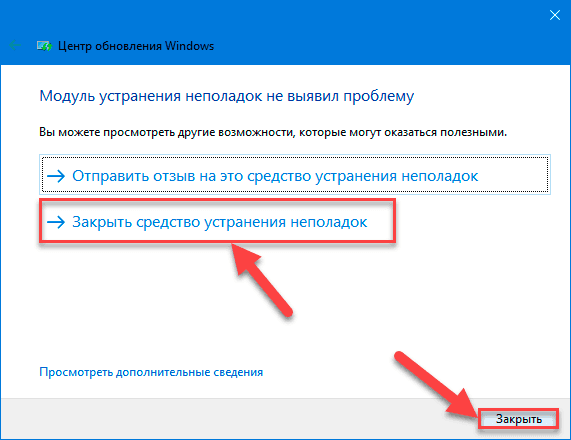
Windows Update troubleshooter in the system Settings
Try the solutions in order, starting with the simplest.
Method 1: Check Internet Connection
Ensure your network is stable.
- Open your browser and try loading several websites (e.g.,
microsoft.com). - If sites do not load:
- Check if Wi-Fi is enabled or if the network cable is connected.
- Restart your router/modem (unplug the power for 30 seconds).
- In Settings → Network & Internet → Advanced network settings, perform a Network reset.
- If you have internet but the error persists, move to the next step.
Method 2: Temporarily Disable Firewall and Antivirus
A common cause is third-party antivirus (Avast, Kaspersky, McAfee) or a firewall.
- Open your antivirus control panel and temporarily disable all protection components (web shield, firewall, emulator).
- Also, open Windows Defender Firewall → Turn Windows Defender Firewall on or off and disable it for both private and public networks.
- Try checking for updates again via Settings → Update & Security.
- Be sure to re-enable your firewall and antivirus afterward! If this helped, configure exclusions in your antivirus for:
- Folders:
C:\Windows\System32\,C:\Windows\SoftwareDistribution\ - Processes:
svchost.exe(with parameter-k netsvcs),wuauclt.exe.
- Folders:
Method 3: Sync Date and Time
An incorrect date or time disrupts the SSL connection.
- Press
Win + Iand open Time & Language. - Under Date & time, enable Set time automatically and Set time zone automatically.
- Click Sync now under Synchronize your clock.
- Restart your computer and check for updates.
Method 4: Reset Windows Update Components
This method recreates the update cache and restarts the services.
- Press
Win + Xand select Windows PowerShell (Admin) or Command Prompt (Admin). - Enter the following commands one by one, pressing Enter after each:
net stop wuauserv
net stop cryptSvc
net stop bits
net stop msiserver
ren C:\Windows\SoftwareDistribution SoftwareDistribution.old
ren C:\Windows\System32\catroot2 catroot2.old
net start wuauserv
net start cryptSvc
net start bits
net start msiserver
Restart your computer.
Method 5: Use the Troubleshooter
The built-in troubleshooter automatically diagnoses and fixes many issues.
- Open Settings (
Win + I). - Go to System → Troubleshoot → Other troubleshooters.
- Find Windows Update and click Run.
- Follow the on-screen instructions. After completion, restart your computer.
Prevention
To prevent error 0x80072efd from recurring:
- Regularly check network stability — especially when using Wi-Fi far from the router.
- Do not disable update services (
wuauserv,bits) manually. To save bandwidth, configure "Active hours" in the update settings. - Update network adapter drivers via Device Manager or the manufacturer's website.
- Use public DNS servers like
8.8.8.8(Google) or1.1.1.1(Cloudflare) if your provider's DNS is unstable. - Periodically clear the update cache manually (the
C:\Windows\SoftwareDistributionfolder) if updates get "stuck".
If the problem returns periodically, the issue may lie with your ISP or corporate network restrictions — contact their support.