What Does Error 0x800706ba Mean
Error 0x800706ba is a hexadecimal system constant for RPC_S_SERVER_UNAVAILABLE. In simpler terms, Windows cannot establish a connection with the Remote Procedure Call (RPC) service. A client application (e.g., an update installer or a network printer connection) sent a request, but the RPC server component did not respond.
Typical scenarios where it appears:
- Connecting to a network printer.
- Accessing administrative shares (ADMIN$) on a remote PC.
- Installing Windows updates or programs.
- Writing events to the Windows Event Log with an
RPCSSorDCOMsource.
The issue is almost always related to the state of the RPC service itself, its dependencies, the network stack, or a firewall block.
Main Causes
- RPC or DCOM services are stopped. The most frequent cause. Services may have been disabled manually, terminated unexpectedly, or failed to start after system boot.
- Corrupted system libraries. Critical files like
rpcrt4.dllorrpcss.dllare damaged or missing. - Corrupted network stack. Issues in the TCP/IP stack or Winsock catalog disrupt data transmission on port 135 (RPC Endpoint Mapper).
- Firewall blocking. Inbound/outbound connections on port 135/TCP and dynamic RPC ports (>1024) are blocked by the built-in or third-party firewall.
- Driver or software conflict. Network drivers, VPN clients, system optimization programs, or certain antiviruses can interfere with RPC operation.
Step-by-Step Solution
Step 1: Restart and Check RPC and DCOM Services
Start here. This resolves the issue in 70% of cases.
- Press
Win + R, typeservices.msc, and press Enter. - In the list, locate the three key services:
- Remote Procedure Call (RPC)
- DCOM Server Process Launcher
- RPC Endpoint Mapper
- For each service:
- Ensure the "Status" column reads "Running".
- If the status is "Stopped", right-click → "Start".
- Right-click → "Properties". In the "Startup type" field, select "Automatic". Click "Apply" and "OK".
- Close the Services window and try to repeat the action that triggered the error.
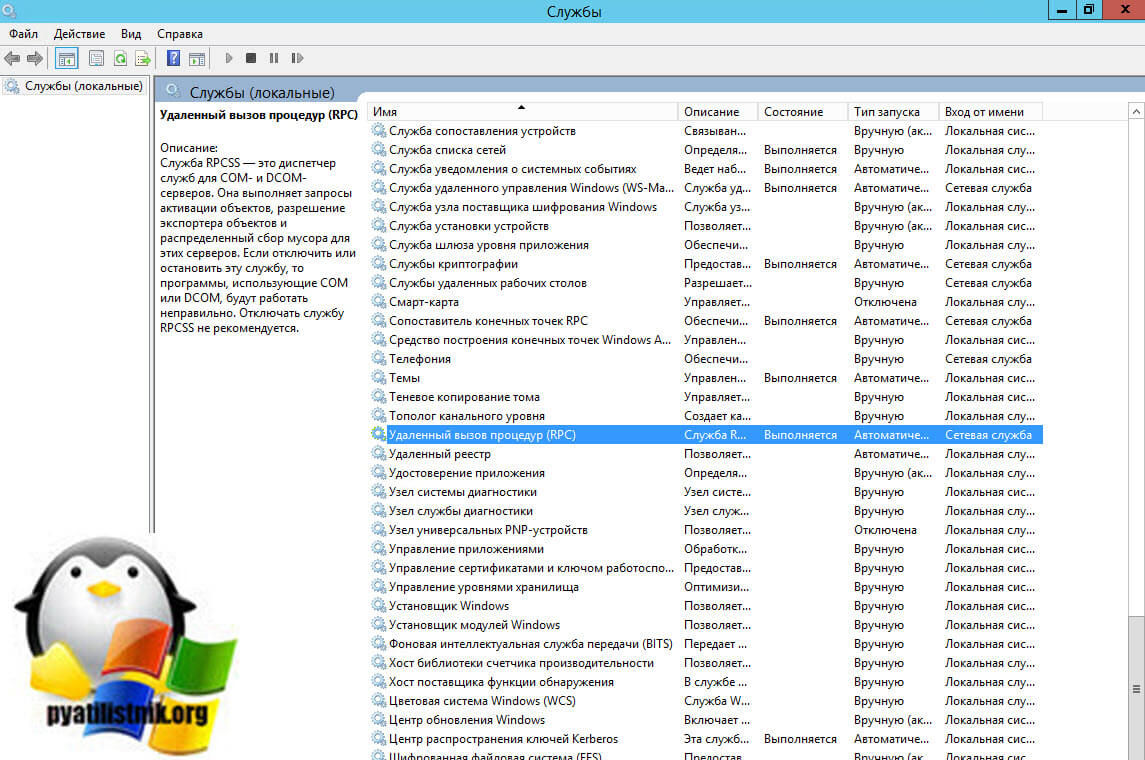
RPC and DCOM services in 'Running' state
Step 2: Repair System Files (SFC and DISM)
If the services are running but the error persists, check the integrity of system components.
- Launch Command Prompt or PowerShell as an administrator.
- Run the system file scan and repair:
The process will take 10–20 minutes. After completion, restart your computer.sfc /scannow - If
sfcdid not fix errors or reported it could not perform the repair, use DISM to restore the system image:
After DISM completes successfully, runDISM /Online /Cleanup-Image /RestoreHealthsfc /scannowagain and restart.
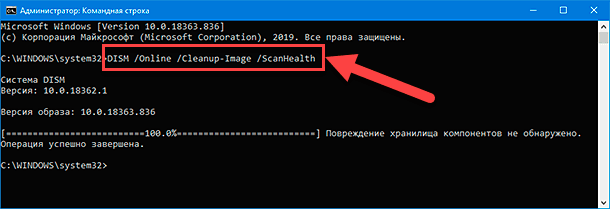
Commands for system file repair and network reset
Step 3: Reset Network Settings (TCP/IP and Winsock)
A corrupted network stack is often a hidden cause.
- In the open Command Prompt (Administrator), execute the TCP/IP reset command:
netsh int ip reset - Then, execute the Winsock catalog reset:
netsh winsock reset - Important: After running both commands, restart your computer. Changes will not take effect without a reboot.
Step 4: Check Firewall and Antivirus Settings
The firewall may be blocking the traffic necessary for RPC.
- Temporarily disable your third-party antivirus and its firewall module (e.g., in Avast, Kaspersky, McAfee). Try the problematic action again. If the error disappears, configure exclusions in that software.
- For Windows Firewall:
- Open Control Panel → System and Security → Windows Defender Firewall.
- On the left, select "Allow an app or feature through Windows Defender Firewall".
- Click "Change settings" (administrator privileges required).
- In the list, find "Remote Procedure Call (RPC)".
- Check the boxes in the "Private" and "Public" columns (or at least the one corresponding to your network type).
- Click OK and restart your PC.
- For third-party antivirus, add an exception for:
- Port 135/TCP (RPC Endpoint Mapper).
- The
svchost.exeprocess with the-k DcomLaunchparameter.
Prevention of Recurrence
- Never disable the Remote Procedure Call (RPC) and DCOM Server Process Launcher services. Stopping them will render the system unusable.
- Regularly install Windows updates. Many RPC compatibility and stability issues are fixed in cumulative updates.
- Install drivers and software only from official sources. Third-party drivers (for network adapters, VPN, virtual machines) often cause conflicts.
- When using third-party antivirus, do not completely disable its network protection modules. Instead, configure proper exception rules for RPC.