'Wrong fs type' Error in Linux: Quick Fix
The wrong fs type (or wrong-fs-type) error occurs when the Linux kernel cannot recognize the file system on a device. The system displays the message:
mount: /dev/sdb1: wrong fs type, bad option, bad superblock on /dev/sdb1,
       missing codepage or other error
This error blocks access to data and appears both during manual mounting with mount and automatically at boot due to issues in /etc/fstab. You can fix it within 10–15 minutes by identifying the actual file system type, loading the kernel module, or checking disk integrity.
Why the wrong-fs-type Error Occurs
Main causes:
- Incorrect file system type in the
mount -tcommand or infstab. For example, specifyingext4for an NTFS partition. - Missing kernel module for the file system (common for
exfat,ntfsin minimal installations). - Corrupted superblock or an unformatted device.
- Outdated mount options for a specific file system type.
- Device already mounted elsewhere (rare, but possible).
How to Fix: Step-by-Step Guide
Step 1: Determine the Actual File System Type
First, check what is actually on the device.
sudo blkid /dev/sdb1
Example output:
/dev/sdb1: UUID="1234-ABCD" TYPE="ntfs"
Alternative:
sudo file -sL /dev/sdb1
Output: /dev/sdb1: NTFS volume ...
Note the TYPE value (e.g., ntfs, exfat, ext4).
Step 2: Specify the Correct Type in mount or fstab
If the type in the blkid output doesn't match what you specified:
- For manual mounting:
sudo mount -t ntfs /dev/sdb1 /mnt
Replacentfswith your type. - For fstab open the file:
sudo nano /etc/fstab
Find the line for this device and correct the 4th field (file system type). It's best to use UUID instead of/dev/sdb1:UUID=1234-ABCD /mnt ntfs defaults 0 0
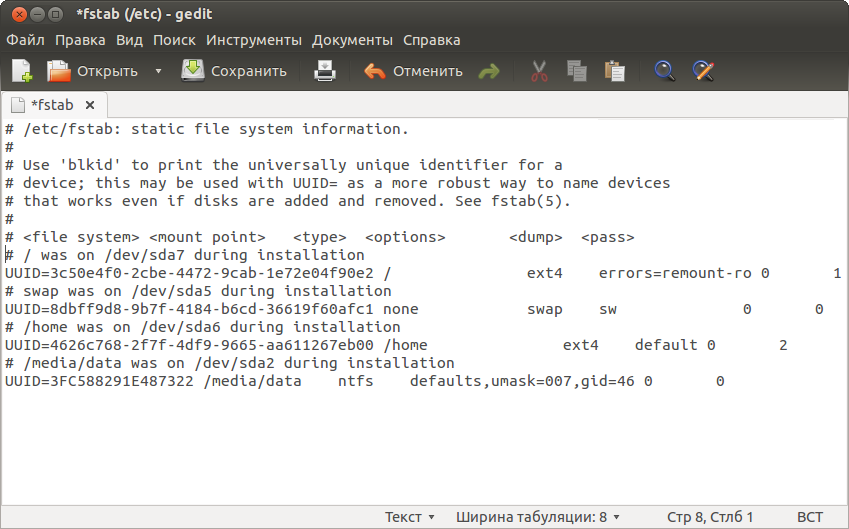
Example of a correct fstab entry with UUID and file system type
Step 3: Load the Kernel Module for the File System
If the file system type is correct but the module isn't loaded.
- Check if the module exists:
lsmod | grep -E "(ntfs|exfat|vfat)"
If the output is empty — the module is not active. - Install support packages (if needed):
- NTFS (full write support):
sudo apt install ntfs-3g # Debian/Ubuntu sudo yum install ntfs-3g # RHEL/CentOS - exFAT:
sudo apt install exfat-fuse exfat-utils
sudo yum install exfat-utils fuse-exfat
- NTFS (full write support):
- Load the module:
sudo modprobe ntfs # for NTFS sudo modprobe exfat # for exFAT - Retry mounting.
Step 4: Check File System Integrity
A corrupted superblock can cause the error.
- For ext2/3/4:
sudo umount /dev/sdb1 # if mounted sudo fsck -y /dev/sdb1 - For NTFS (requires
ntfs-3g):sudo umount /dev/sdb1 sudo ntfsfix /dev/sdb1 - For FAT32:
sudo umount /dev/sdb1 sudo fsck.vfat -a /dev/sdb1 - For exFAT:
sudo umount /dev/sdb1
sudo fsck.exfat /dev/sdb1
⚠️ Important: Do not run
fsckon a mounted device. This can destroy data.
Step 5: Validate and Correct fstab
Boot errors often relate to fstab.
- Check syntax:
sudo mount -a
If there are no errors — the configuration is correct. - Ensure
fstabhas 6 fields, separated by spaces/tabs:<device> <mount_point> <fs_type> <options> <dump> <pass>- In the
<fs_type>field, useautofor auto-detection or the exact type. - Use UUID (from
blkid) instead of/dev/sdb1. - For non-critical partitions, add
nofailto options so the system doesn't hang on error.
Example:UUID=1234-ABCD /mnt auto defaults,nofail 0 0 - In the
Step 6: Use Auto-Detection
If you're unsure of the file system type:
- For manual mounting omit
-t:sudo mount /dev/sdb1 /mnt - In fstab specify
auto:/dev/sdb1 /mnt auto defaults 0 0
⚠️ Limitation: Auto-detection may fail for
exfatwithout the module or with a corrupted superblock.
Preventing the wrong-fs-type Error
- Always check the file system type before mounting using
blkidorlsblk -f. - Use UUID in fstab — device names (
/dev/sdb1) can change. - Update the kernel and file system support packages (
ntfs-3g,exfat-utils). - Create backups before disk operations (fsck, formatting).
- Test fstab with
sudo mount -abefore rebooting.
These steps reduce the risk of data loss and ensure stable mounting.