What is the Low Storage Error on iPhone

iPhone Storage
The Low Storage error occurs when less than 500 MB–1 GB of free space remains on the internal memory of an iOS device. The system blocks update installations, app downloads, the operation of certain services (e.g., iCloud Photo Library), and may force-close active apps. The dialog box usually indicates the minimum required space.
Main Causes of Low Memory
- Accumulation of app cache. Social networks, browsers, and messengers store temporary files that are not automatically deleted.
- Media file synchronization via iCloud Photos. When iCloud Photos is enabled, photos and videos in full quality can be downloaded to the device.
- Automatic downloads. App Store purchases, music, podcasts, and app updates can download without explicit confirmation.
- Incomplete downloads. Files from Safari, Telegram, or other apps that weren't deleted after a crash.
- System 'Other Data'. Includes subscription files, system service data, temporary update files. Can occupy several gigabytes.
- Outdated backups. iCloud or iTunes backups, especially if multiple accounts were used on the device.
How to Free Up Space on iPhone: Step-by-Step Guide
Clearing Safari Cache
Check Current Memory Usage
Go to Settings → General → Your Device → iPhone Storage. Analyze the list: which apps occupy the most space. Pay attention to the size of the 'Other Data' section—if it exceeds 1–2 GB, additional cleanup will be required.
Delete or Offload Unnecessary Apps
In the storage section, tap on an app occupying more than 500 MB. Two options are available:
- Offload App — removes the app itself but preserves its documents and data. Settings and data will be restored after reinstallation.
- Delete App — removes the app and all its associated data.
For apps with a large 'Documents & Data' section (e.g., games, video editors), a full delete followed by a reinstall is often effective.
Clear Browser and App Cache
Browser cache can occupy gigabytes, especially with heavy surfing.
- Safari: Settings → Safari → Clear History and Website Data.
- Chrome: App → three dots → Settings → Privacy → Clear Browsing History, Cache, Cookies.
- Firefox: Settings → Delete Data → select 'Cache'.
For apps like Telegram, VK, Instagram, use their built-in cache clearing functions in settings or delete and reinstall the app.
Manage Photos and Videos
Media files are the primary consumers of storage.
- Open Photos → Albums → Recently Deleted and empty the folder (files are stored for 30 days).
- In All Photos, delete duplicates, blurry shots, and long videos.
- If iCloud Photos is enabled, go to Settings → your account → iCloud → Photos and enable 'Optimize iPhone Storage'. Reduced-size versions will remain on the device, originals in the cloud.
- Check the 'Downloads' folder in the Files app and delete unnecessary archives, videos.
Configure Cloud Services and Disable Auto-Downloads
- Upload large files (videos, archives) to iCloud Drive, Google Drive, or Dropbox. After a successful upload, delete local copies.
- In Settings → Photos, disable 'iCloud Photos' or leave only 'Optimize iPhone Storage'.
- In Settings → Music, disable 'Automatic Downloads'.
- In Settings → App Store, disable 'Automatic Downloads' for apps, music, and books.
Last Resort: Reset and Restore
If the 'Other Data' section remains large after all manipulations:
- Create a backup via iCloud or computer.
- Perform Reset All Settings: Settings → General → Transfer or Reset iPhone → Reset All Settings. This clears system caches without deleting data.
- Restore the device from the created backup (via iTunes/Finder or iCloud). This overwrites system partitions and often resolves the problem with bloated 'Other Data'.
Preventing Recurring Low Storage
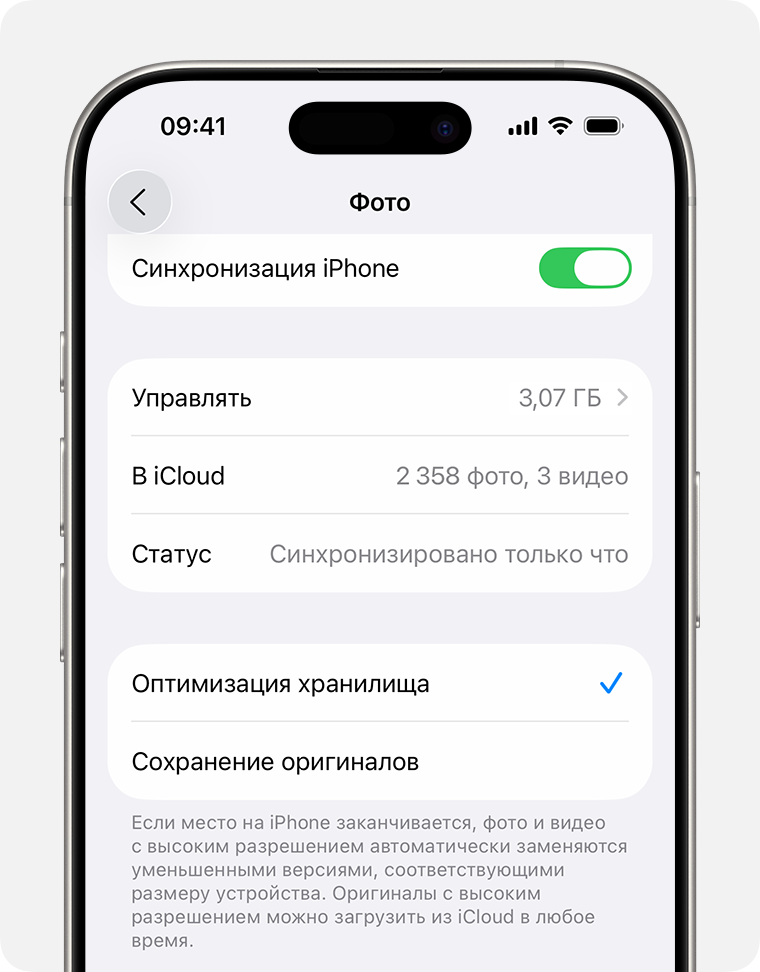
iCloud Photos Optimization
- Check storage in settings every 2–3 months.
- Enable 'Offload Unused Apps' (Settings → App Store).
- Regularly clear the cache of Safari and 'heavy' apps (social networks, games).
- Use cloud services for storing large files instead of internal memory.
- Do not leave incomplete downloads—they can remain in the system as temporary files.
- Consider using third-party storage analyzers (e.g., Storage Inspector) to find hidden large files.
Following these recommendations will help maintain at least 1–2 GB of free space on the device and avoid critical low storage errors.