What is the NSURLError Not Connected to Internet Error
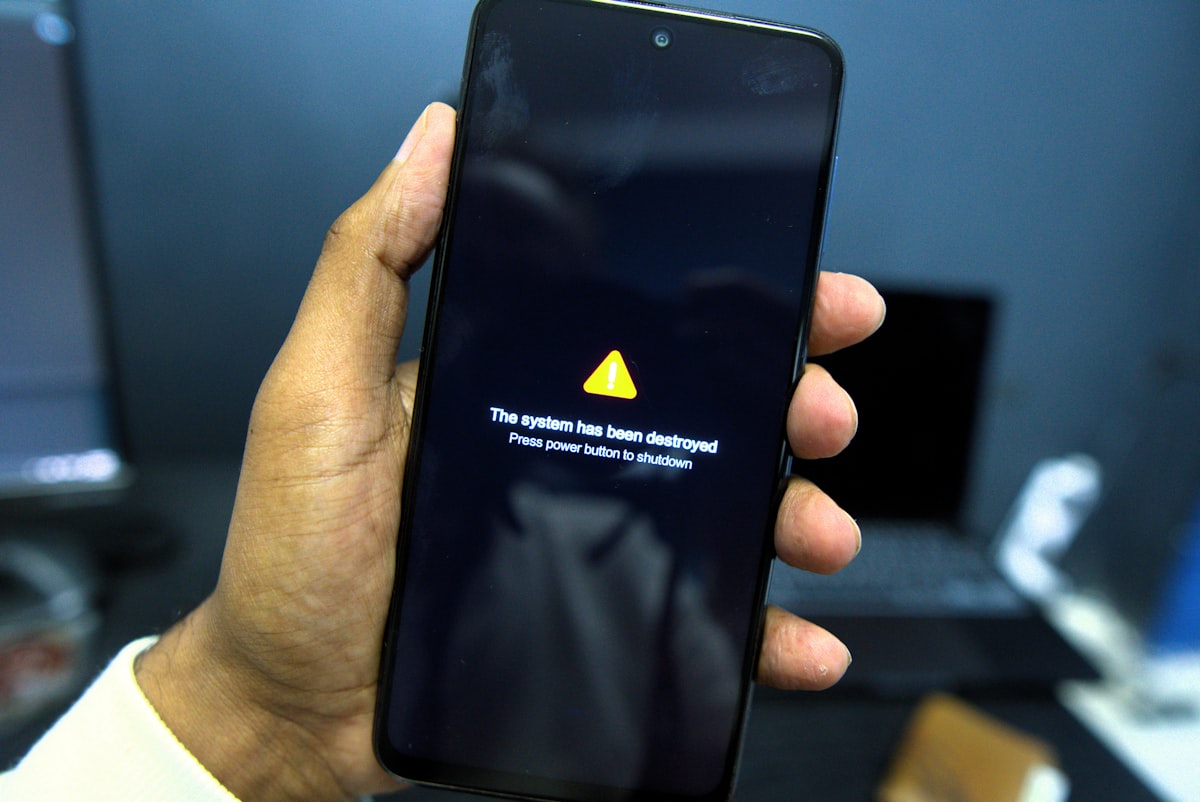
NSURLErrorNotConnectedToInternet error message in an iOS app
The NSURLErrorNotConnectedToInternet error (code -1009) occurs in iOS apps when the system cannot establish an internet connection. The full error text is: "The Internet connection appears to be offline." It appears in any program that uses the network: browsers, messengers, games.
This error indicates a problem with the device's network connection, not a bug in a specific app.
Main Causes
The -1009 error is usually caused by one of the following:
- No active connection: Wi-Fi is off or not connected, cellular data is disabled or out of coverage.
- ISP or router failure: Problems on the internet provider's side or within the home network.
- Corrupted iOS network settings: Incorrect DNS, IP conflicts, configuration errors.
- Airplane Mode is enabled: Completely disables wireless interfaces.
- Incorrect date and time: Can disrupt SSL certificate functionality.
- Traffic blocking: Active VPN, firewall, or ad-blocking applications.
- System bugs in iOS: An outdated operating system version.
How to Fix Error -1009 on iPhone and iPad
Step 1: Check Basic Connectivity
First, ensure the device actually has internet access:
- Open Safari and try loading any website, e.g.,
apple.com. - If the site doesn't load, check:
- Wi-Fi:
Settings → Wi-Fi. The toggle should be green, with a checkmark next to the network. - Cellular Data:
Settings → Cellular. The toggle is on, and signal bars are visible in the status bar. - Airplane Mode: No airplane icon in the status bar. Or
Settings→ top of screen toggle is off.
- Wi-Fi:
- Check date and time:
Settings → General → Date & Time. Enable "Set Automatically".
If Safari works but the error occurs only in one app, proceed to the next steps.
Step 2: Restart Your Device
A simple restart often resolves temporary network module glitches:
- Press and hold the power button (on iPhone 8+ — together with the volume button).
- Drag the power-off slider.
- After 15 seconds, turn the device back on using the power button.
- Test the internet in Safari.
Step 3: Disable VPN and Network Blockers
VPN services and ad-blocking apps can intercept traffic:
- Disable VPN:
- Built-in:
Settings → VPN→ turn it off. - Third-party (ExpressVPN, NordVPN): open the app and tap "Disconnect".
- Built-in:
- Temporarily disable/uninstall apps like AdGuard, 1Blocker, or antiviruses with a firewall.
- Check if the internet works after disabling.
Step 4: Reset Network Settings
If the problem is a corrupted configuration, a reset will restore default settings:
⚠️ Warning: Resetting will delete all saved Wi-Fi networks, passwords, Bluetooth settings, and VPN configurations. You will need to reconnect to Wi-Fi afterward.
Settings → General → Reset.- Tap Reset Network Settings.
- Enter your device passcode and confirm.
- The device will restart automatically.
Step 5: Update iOS and Apps
Outdated software may contain bugs in the network stack:
- Update iOS:
Settings → General → Software Update. Install any available update (requires >50% charge and Wi-Fi). - Update apps: Open the App Store → profile avatar → Update All.
- Restart the device after updates.
Step 6: Check Your Router and Provider
If the problem isn't on the device but in the network:
- Restart your Wi-Fi router (unplug the power cable for 30 seconds).
- Try using cellular data (if available). If it works over cellular — the issue is with the router or provider.
- Contact your internet provider to check the line.
How to Prevent the Error from Reappearing
- Regularly update iOS via
Settings → General → Software Update. - Update apps through the App Store.
- Use reputable VPN services and avoid free alternatives.
- Restart your router once a week for stable home network performance.
- Do not change network settings (DNS, IP) unnecessarily.
- Choose stable Wi-Fi networks with good signal strength for important tasks.