What is iPhone Error 53
Error 53 is a failure code that appears in iTunes (Windows) or Finder (macOS) during the restore or update of an iPhone, iPad, or iPod touch. The full message is:
"Could not restore device. An unknown error (53) occurred."
The problem blocks the process and often indicates a security conflict or firmware corruption. The device may enter recovery mode and fail to exit it. The error is typical for models with a security chip (A12 and newer) and occurs after failed update attempts or when using non-original cables.
Main Causes of Error 53
- Faulty USB cable. The most common factor. The cable does not provide stable data transfer or does not support the necessary protocol.
- Outdated software. iTunes (Windows) or an outdated version of macOS is incompatible with the current version of iOS/iPadOS.
- Secure Enclave chip failure. On iPhone XS and newer, error 53 can mean that the firmware failed authenticity verification. This happens after a jailbreak, an attempt to install custom firmware, or critical corruption of the system partition.
- Corrupted iOS system files. An interrupted update or restore led to corruption of the bootloader or other key components.
- USB driver conflict (Windows). Outdated or incorrect USB controller drivers prevent iTunes from communicating properly with the device.
How to Fix Error 53: Step-by-Step Guide
Start with simple steps and move to more complex ones. In 60% of cases, replacing the cable and updating the software helps.
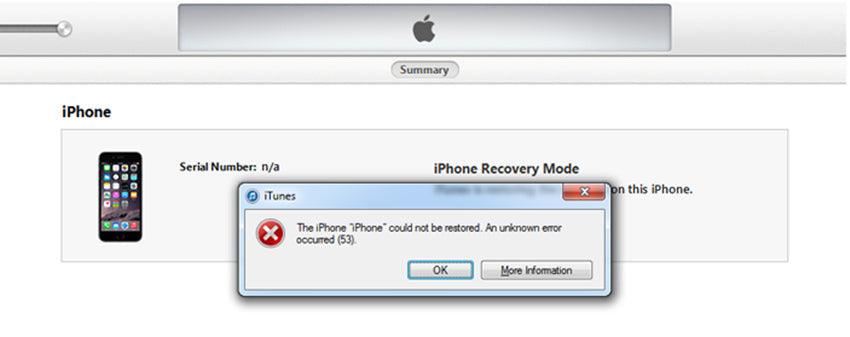
Typical error 53 message in iTunes and Finder
Step 1: Check the Cable and Port
- Use an original Apple cable (Lightning or USB-C) or an MFi-certified one.
- Connect the iPhone directly to a port on the computer's system unit. Avoid USB hubs and front PC panels.
- Try a different port (preferably a blue USB-A 3.0 or USB-C port).
- On Windows: Open Device Manager, find USB controllers, and update drivers for all Apple devices. Restart the PC.
Step 2: Update or Reinstall iTunes/Finder
For Windows:
- Launch iTunes → Help → Check for Updates.
- If updating didn't help, completely uninstall iTunes via Control Panel → Programs and Features, then download and install the latest version from apple.com/itunes/.
For macOS (Catalina and newer):
- Update macOS via System Settings → Software Update to the latest version.
- Finder uses system components, so a separate reinstall is not required.
Step 3: Restore in Recovery Mode
This method loads the latest iOS version, bypassing the current, corrupted firmware.
- Put the iPhone into recovery mode:
- iPhone 8, SE (2nd gen) and newer: Quickly press and release the volume up button, then the volume down button. Hold the side button until the screen with the cable and iTunes/Finder icon appears.
- iPhone 7 / 7 Plus: Hold the volume down button and the side button simultaneously.
- iPhone 6s and earlier: Hold the Home button and the side button.
- Connect the device to the computer. iTunes/Finder will prompt you to restore.
- Click "Restore". The program will download and install iOS. Do not disconnect the cable! The process will take 10-20 minutes.
Step 4: Force Restore in DFU Mode
Use this if recovery mode did not resolve the issue. DFU (Device Firmware Update) is the deepest level that bypasses the iOS bootloader.
- Put the iPhone into DFU mode:
- iPhone 8 and newer: Press and release the volume up button, then the volume down button. Hold the side button for 5 seconds, then, while still holding the side button, press and hold the volume down button for another 5 seconds. The screen will remain black.
- iPhone 7: Hold the side button and volume down button for 8 seconds, release the side button, but continue holding the volume down button for 5 more seconds.
- iPhone 6s and earlier: Hold the Home button and the side button for 8 seconds, release the side button, but continue holding the Home button for 5 more seconds.
- The device screen will be black. iTunes/Finder will show a message that an iPhone in recovery mode has been detected.
- Click "Restore". The program will download the firmware from Apple's servers and perform a full reinstall. The process will take 15-30 minutes. Do not interrupt it!
How to Prevent Error 53
- Use only original or MFi-certified cables. This reduces the risks of communication failures.
- Update iTunes (Windows) and macOS before any operation with the device.
- Before updating/restoring, ensure the battery charge is above 50%.
- Regularly create backups via iCloud or on your computer.
- Do not interrupt the update/restore process: do not disconnect the cable and do not turn off the computer.
- On Windows, periodically update the USB controller drivers via Device Manager.