What Does Error 403 Mean on iPhone
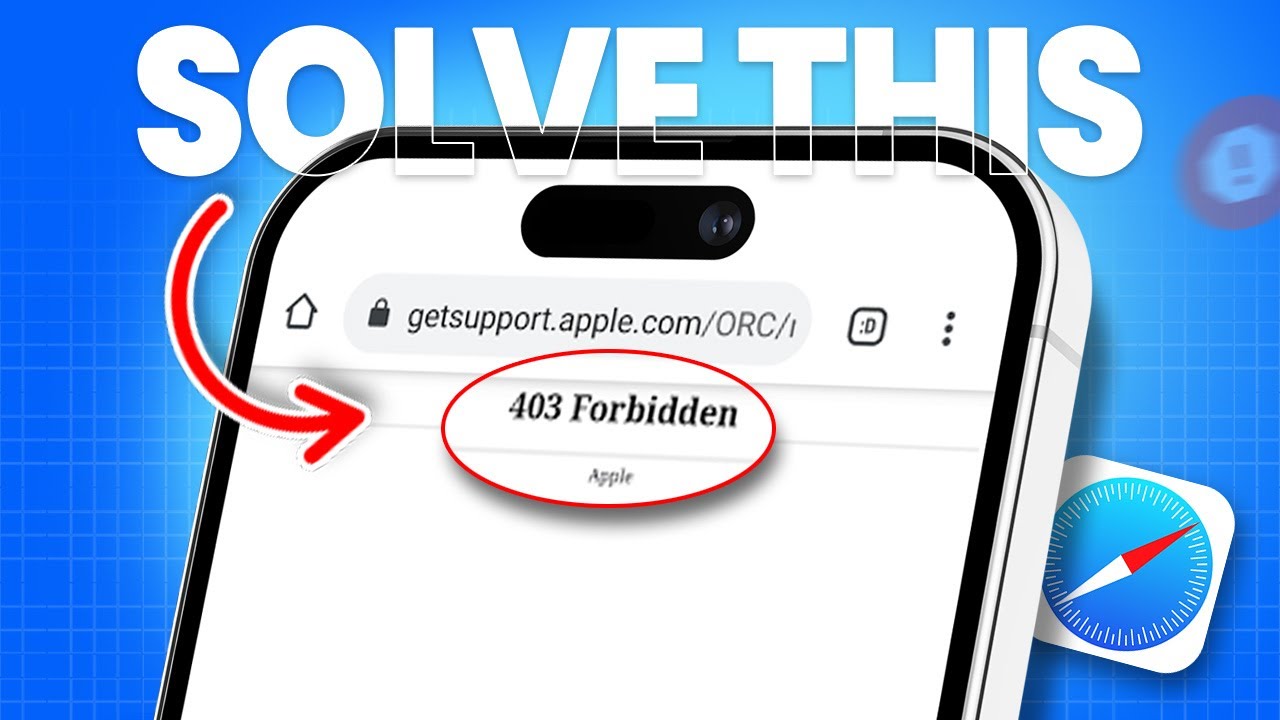
403 Forbidden error in Safari on iPhone
The 403 Forbidden error is an HTTP status returned by a server when it understands the request but refuses to fulfill it due to your iPhone lacking the necessary permissions to access the resource. On screen, you will see a message stating "403 Forbidden" or "Access Denied".
This error occurs in the Safari browser or in any other app that accesses the internet (e.g., a mail client, messenger). It is not related to a problem with the device itself but indicates a conflict between the request and the server's policies.
Main Causes of Error 403 in iOS
- Incorrect or outdated cookies. Servers use cookies for authentication. If they are corrupted or expired, access is blocked.
- Server configuration error. The site/application administrator may have changed access rules (e.g., restricted by IP or User-Agent).
- Blocking by a firewall or CDN. Cloudflare, Sucuri, or corporate firewalls sometimes erroneously block legitimate requests from mobile devices.
- Incorrect request headers. Some apps (especially unofficial clients) may send non-standard headers that the server rejects.
- Issues with VPN or antivirus on the device. They can modify traffic, triggering the server's protective mechanisms.
- Expired or incorrect authorization token. If you are logged into a service and the token expires, the server may return a 403 instead of a 401 (Unauthorized).
Solution 1: Quick Check and Restart
Often the error is temporary and related to a connection or cache glitch.
- Switch between networks: If using Wi-Fi, try mobile internet (and vice versa).
- Toggle Airplane Mode: Settings → Airplane Mode (or swipe down from the Control Center).
- Restart the app: close it completely and reopen it.
- Restart the iPhone: hold the power button and any volume button, then slide to power off.
Solution 2: Clear Safari Cache and Data
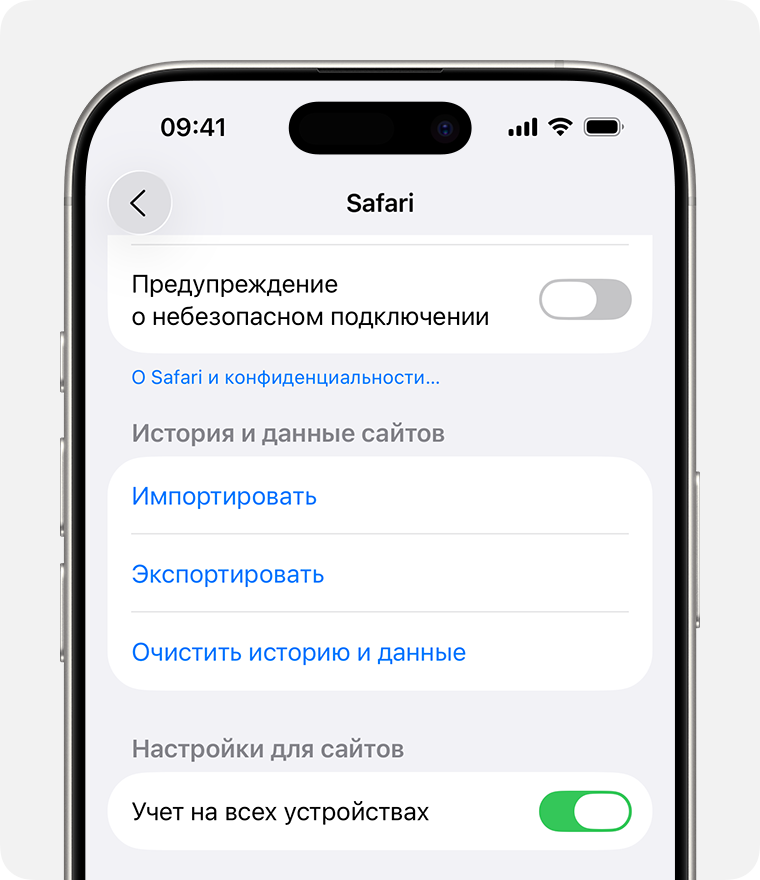
Clearing Safari cache and data in iOS
If the error occurs in the browser, the problem is likely with cookies or the cache.
- Open Settings.
- Scroll down to Safari.
- Tap Clear History and Website Data → Clear History and Data.
- For more granular control, go to Advanced → Website Data and delete data for the specific domain causing the error.
💡 Tip: After clearing, you will need to log in to websites again.
Solution 3: Update Software and Apps
Outdated software may contain bugs in the networking stack.
- Update iOS: Settings → General → Software Update. Install the latest stable version.
- Update all apps: Open the App Store → your account (top right) → Update All.
- Reinstall the problematic app: delete it, restart the iPhone, and reinstall it from the App Store.
Solution 4: Reset Network Settings
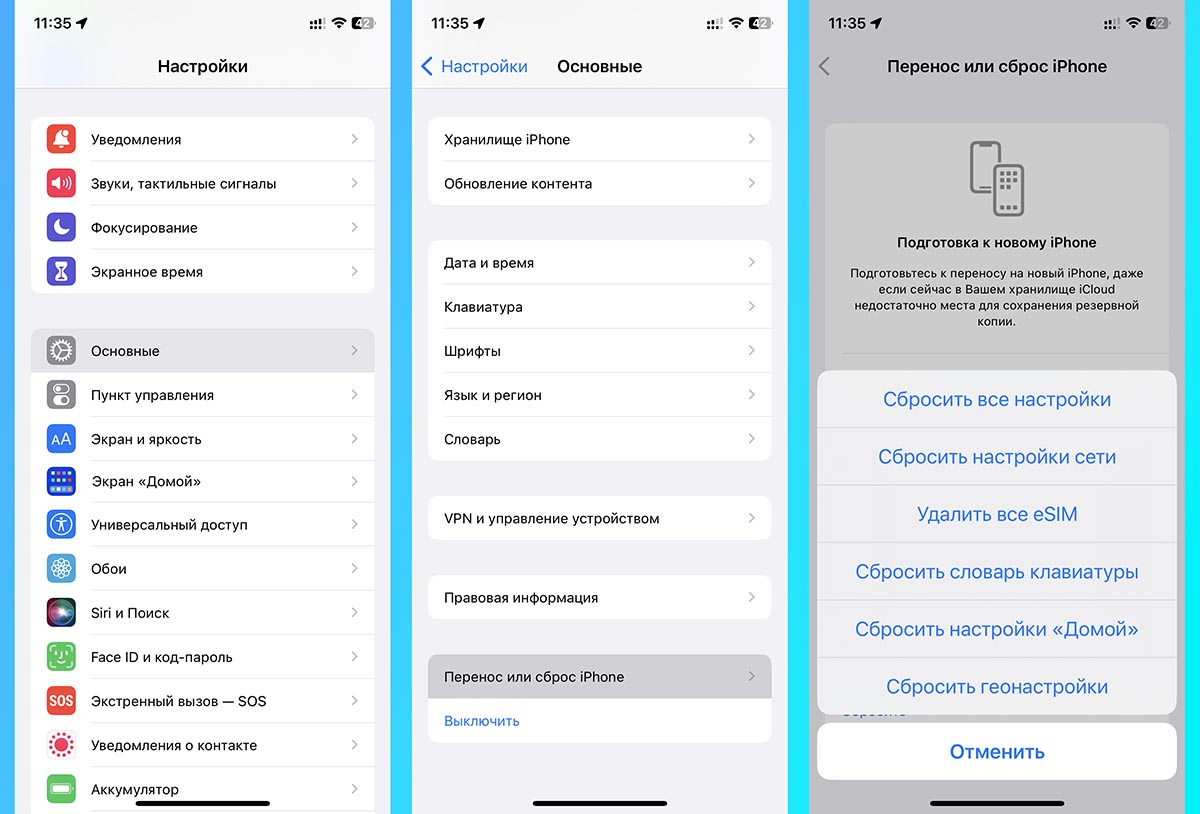
Resetting network settings on iPhone
This step removes all saved Wi-Fi networks, passwords, VPN configurations, and Bluetooth settings. It often resolves deep network conflicts.
- Open Settings → General.
- Scroll down and select Transfer or Reset iPhone (or Reset on older iOS versions).
- Tap Reset → Reset Network Settings.
- Enter your password if prompted and confirm the reset.
- After the reboot, reconnect to your Wi-Fi network.
⚠️ Important: Your Wi-Fi passwords will not be saved. Have them ready beforehand.
Solution 5: Server-Side Check (For Administrators)
If you are the administrator of a website or application, the 403 error may be caused by:
- Incorrect file permissions on the server (e.g.,
chmod 644instead ofchmod 755for directories). .htaccessconfiguration (in Apache) ornginx.confrules that deny access to certain directories.- CORS (Cross-Origin Resource Sharing) settings that block requests from mobile User-Agents.
- IP address blocking of your provider or the IP range your iPhone belongs to.
In this case, you will need to check the server logs (e.g., error_log in Apache) and adjust the access rules accordingly.
Preventing Error 403 from Recurring
- Regularly update iOS and apps — security patches often relate to network requests.
- Avoid unnecessary VPNs and blockers when accessing critical services. If using a VPN, try switching servers.
- Do not install apps from unofficial sources (outside the App Store) — they may contain modified networking libraries.
- Periodically clear Safari's cache (Settings → Safari → Clear History and Website Data), especially if you frequently visit various sites.
- Check date and time (Settings → General → Date & Time). Incorrect time can invalidate SSL certificates and tokens, leading to 403 errors.