What Does Error 524 Mean
Cloudflare Error 524 (Cloudflare Timeout) occurs when the Cloudflare CDN service establishes a TCP connection with your origin server but does not receive a complete HTTP response from it within 100 seconds.
The user's browser displays:
Error 524: A timeout occurred
And the response headers show:
HTTP/1.1 524
Server: cloudflare
The key point: Cloudflare generates this error before the request reaches your web server (Nginx, Apache). The problem is not with Cloudflare's infrastructure, but with your server either not responding at all or responding too slowly.
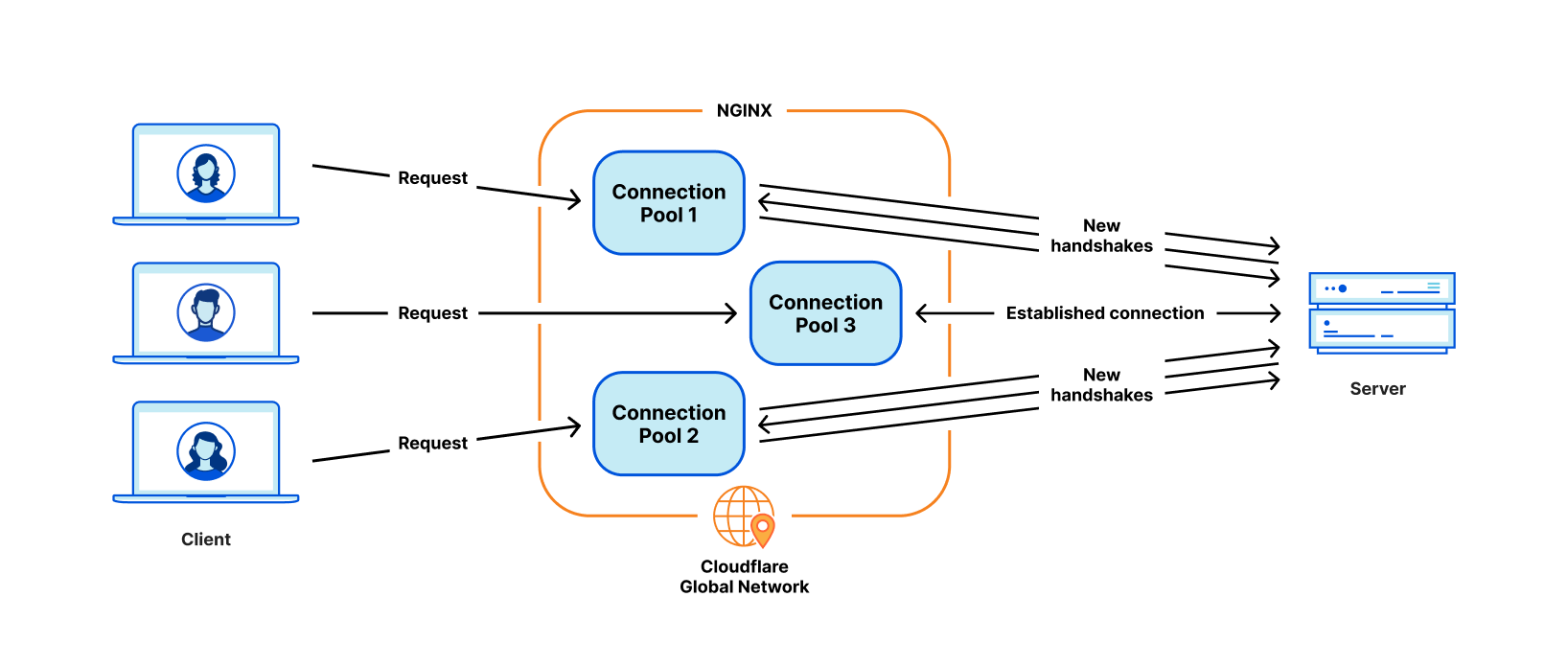
Cloudflare reverse proxy architecture diagram with a 100-second timeout
Common Causes
- Long-running backend request execution. A script (PHP, Python, Node.js) or a database query takes more than 100 seconds to execute.
- Insufficient server resources. High CPU load, lack of RAM leading to active swapping and slowing down all processes.
- Blocking by a firewall/WAF. A server firewall (iptables, CSF) or web application firewall (ModSecurity) drops or delays packets from Cloudflare IP addresses.
- Network issues. High latency or packet loss between the Cloudflare data center and your server.
- Timeout values set too low in configuration.
proxy_read_timeout,fastcgi_read_timeout(nginx) orProxyTimeout(Apache) values are set to less than 100 seconds, causing the server to terminate the connection prematurely. - Application process hang. A PHP-FPM, Gunicorn, or Puma process is stuck waiting for an external resource (API, database) and cannot complete the request.
Solutions
Step 1: Diagnosis with curl and Cloudflare
First, confirm that the issue is specifically a Cloudflare timeout.
- Temporarily disable Cloudflare. In the Cloudflare dashboard for your domain, switch the cloud icon to DNS Only (gray). If the site starts working, the problem is definitely in the Cloudflare/network layer.
- Measure response time directly to the server. Access the server via its IP address or a domain that points directly to the server (bypassing Cloudflare).
Ifcurl -o /dev/null -s -w "time_total: %{time_total}\n" http://SERVER_IP/problematic-pathtime_totalapproaches or exceeds 100 seconds, the problem is with backend performance.
Step 2: Log Analysis and Resource Monitoring
Find the specific request or process causing the timeout.
- Web server logs. For Nginx, look for
upstream timed outorgateway timeout:
For Apache, checktail -f /var/log/nginx/error.log | grep -E "(upstream timed out|gateway timeout)"error_log. - Application logs. For PHP-FPM:
For Python (Gunicorn) or Node.js, check systemd logs or console output.tail -f /var/log/php-fpm/error.log - Real-time monitoring. Install
htoporglancesand observe CPU, RAM load, and process count when the error occurs:htop
Step 3: Optimizing Slow Code and Queries
If the problem is in a specific script (e.g., report.php or /api/analytics):
- Profile the request. Use Xdebug/Blackfire for PHP,
cProfilefor Python, clinic.js for Node.js. - Optimize database queries. For slow SQL queries, run
EXPLAIN ANALYZE, add missing indexes, and rewrite complex JOINs. - Implement caching. Cache results of heavy computations or database queries in Redis or Memcached.
Example for PHP (Predis):
<?php $redis = new Predis\Client(); $cacheKey = 'heavy_report_data'; $data = $redis->get($cacheKey); if (!$data) { $data = generateHeavyReport(); // Function taking >100s $redis->setex($cacheKey, 3600, serialize($data)); } echo $data; - Offload long-running operations to a queue. Move email sending, report generation, image processing to asynchronous tasks (RabbitMQ, Beanstalkd, Celery, Sidekiq). The web request should return quickly, while heavy work runs in the background.
Step 4: Configuring Web Server and Application Timeouts
Ensure all timeouts in the chain exceed 100 seconds, otherwise the server will terminate the request before Cloudflare does.
For Nginx (in nginx.conf or site config):
location ~ \.php$ {
    fastcgi_pass   php-fpm:9000;
    fastcgi_read_timeout 120;   # Main timeout for reading response from FastCGI
    fastcgi_connect_timeout 120; # Connection establishment timeout
}
Also check proxy_read_timeout if using a proxy.
For PHP (php.ini or .user.ini):
max_execution_time = 120    ; Max script execution time
max_input_time = 120        ; Max time for parsing input data
For Apache (in virtual host config or .htaccess):
# If using mod_proxy
ProxyTimeout 120

# If using mod_php
php_value max_execution_time 120
For Node.js (Express):
const timeout = require('connect-timeout');
app.use(timeout('120s')); // Middleware that terminates requests longer than 120s
After making changes, restart the services:
sudo systemctl restart nginx php-fpm
# or for Apache
sudo systemctl restart apache2
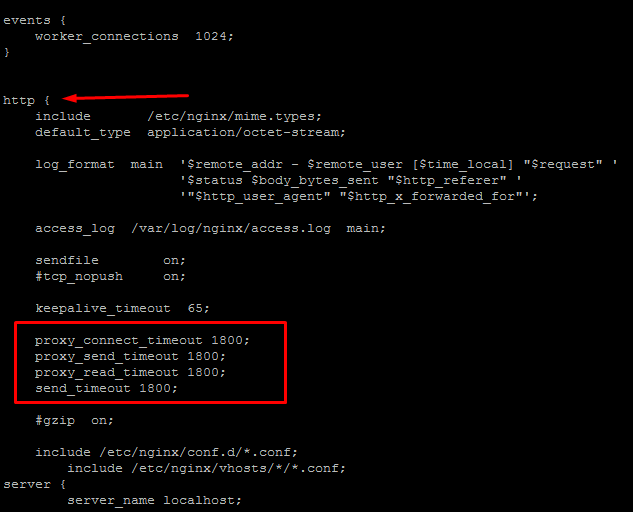
Examples of timeout settings in nginx, apache, and php to fix error 524
Step 5: Checking Network Accessibility and Firewall
Cloudflare uses fixed IP address ranges. If your firewall blocks them, the connection will be dropped.
- Allow Cloudflare IP addresses. Download the current lists from cloudflare.com/ips and add them to your firewall rules.
Example for
iptablesusingipset(recommended):
For# Create set for IPv4 ipset create cloudflare hash:ip # Load and add IPv4 addresses curl -s https://www.cloudflare.com/ips-v4 | while read ip; do ipset add cloudflare $ip; done # Allow traffic from Cloudflare to ports 80/443 iptables -A INPUT -p tcp --dport 80 -m set --match-set cloudflare src -j ACCEPT iptables -A INPUT -p tcp --dport 443 -m set --match-set cloudflare src -j ACCEPTfirewalldorCSF, use the appropriate commands for adding networks/IPs. - Check firewall logs for dropped packets from Cloudflare:
sudo grep -i "cloudflare" /var/log/iptables.log sudo tail -f /var/log/fail2ban.log - Check network quality. From your server, run ping and traceroute to any Cloudflare IP (e.g.,
172.67.134.212):
Stable ping values (< 100 ms) and no packet loss (ping -c 4 172.67.134.212 traceroute 172.67.134.2120% packet loss) are good signs.
Prevention
- Regular performance audits. Enable
slow_query_login MySQL/PostgreSQL. Use APM tools (New Relic, Datadog, Scout) to identify slow endpoints. - Set up response time monitoring. In Zabbix, Prometheus, or UptimeRobot, configure alerts for response times > 30 seconds.
- Cache at all levels. Use
Cache-Controlheaders, cache entire pages (Varnish) or fragments (Redis, Memcached) at the application level. - Implement limits on user requests. For APIs, use rate limiting (e.g., via nginx
limit_req_zone) and code-level timeouts to prevent one "heavy" request from blocking a worker. - Keep software up-to-date. Outdated versions of PHP, Node.js, or libraries may have memory leaks or known performance issues.
- Conduct load testing. Before deploying new features, test them under peak load with JMeter, k6, or Locust to assess response times.