What is Error 511

HTTP 511 error network flow diagram
Error 511 Network Authentication Required is an HTTP status code indicating that access to the requested resource is blocked by a network gateway. Unlike 4xx errors, which are generated by the target web server, code 511 is returned by an intermediate device:
- A proxy server (corporate or public).
- A captive portal (authorization page) in guest networks (hotels, airports, cafes, universities).
- A firewall or security gateway requiring identity verification before granting internet access.
Instead of the desired site, the browser displays a page requesting a login, password, or acceptance of network usage terms.
Main Causes
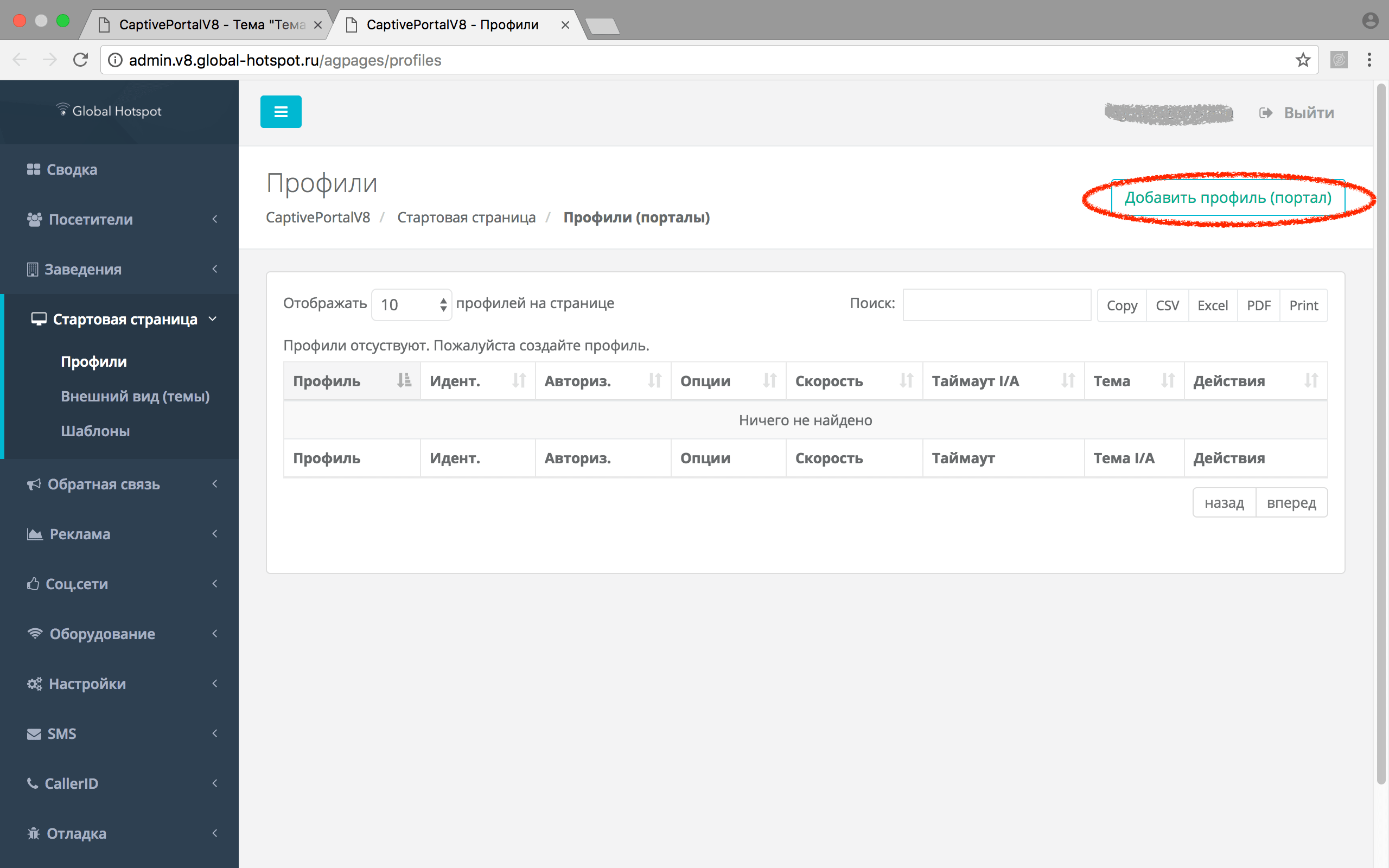
Example of an authorization page interface
- Connecting to a network requiring mandatory authorization. You just connected to Wi-Fi at a hotel or workplace. The network does not know your identity and intercepts all traffic until you complete the login process.
- Incorrect proxy settings in the system. The operating system or browser specifies a proxy server address that requires authentication, but credentials are not provided or are outdated.
- Conflict with VPN or corporate software. Secure access clients (Cisco AnyConnect, Zscaler) create a virtual network adapter that can function as a proxy requiring authentication.
- Outdated authentication data in the browser cache. The browser has saved old sessions for the proxy, leading to an infinite loop of authentication requests.
How to Fix Error 511
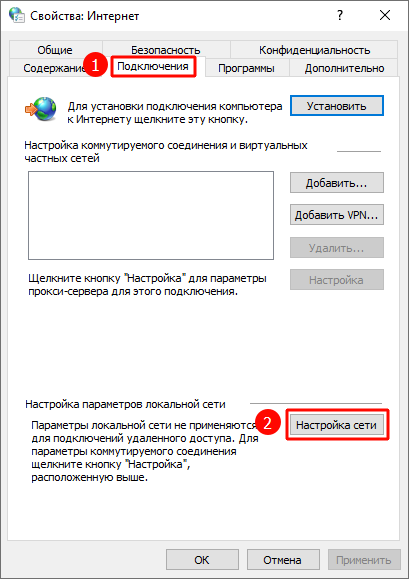
Proxy settings window in Windows 10
Complete Standard Network Authorization
This solution is for public networks (hotels, airports, cafes).
- Ensure you are connected to the correct Wi-Fi network.
- Open any HTTP site (e.g.,
http://example.comorhttp://neverssl.com) in incognito mode. Using HTTP and incognito helps avoid redirects and conflicts with the cache. - You will be automatically redirected to the network operator's login page (captive portal).
- Enter the required data: this may be a room number, a login/password for a personal account, or simply an "Accept" button.
- After successful authorization, the page will refresh, and internet access will be available.
💡 Tip: If the login page does not open, try manually navigating to common addresses:
http://login.net,http://captive.apple.com(for iOS/macOS), orhttp://connectivitycheck.gstatic.com/generate_204(for Android/Chrome).
Check and Reset Proxy Settings
If you are not on a public network, the problem may be with your computer's settings.
For Windows:
- Open Windows Settings (Win + I) → Network & Internet → Proxy.
- Under "Manual proxy setup," disable the "Use a proxy server" toggle if you are not on a corporate network.
- If a proxy is mandatory, verify the address, port, and credentials are correct. The format for entering credentials is
http://username:password@address:port. - Also disable "Automatically detect settings" (PAC file) temporarily for diagnostics.
For macOS:
- System Settings → Network → select the active interface (Wi-Fi/Ethernet) → Details → Proxies tab.
- Uncheck all protocols (HTTP, HTTPS, SOCKS) if you do not use a manual proxy.
For Browsers:
- Proxy settings in Chrome, Edge, and Firefox usually sync with system settings. Check:
chrome://settings/system(Chrome/Edge) orabout:preferences#general(Firefox, "Network Settings" section).
Clear Network and Browser Data
- Clear your browser's cache, cookies, and form data. This will remove old, incorrect authentication data saved for the proxy.
- Reset network settings in Windows. Launch PowerShell as Administrator and run:
Restart your computer after execution. This command restores the network stack configuration.netsh winsock reset netsh int ip reset - Clear the DNS cache. Open Command Prompt (Administrator) and enter:
ipconfig /flushdns
Disable Conflicting Software
- Turn off VPN clients (ExpressVPN, NordVPN, ProtonVPN) and corporate programs (Cisco AnyConnect, FortiClient, Pulse Secure). They may create a virtual proxy requiring separate authentication.
- Disable browser extensions that modify traffic (proxy extensions, certain ad-block filters).
- After disabling, try refreshing the problematic page.
Use Mobile Internet (Temporary Workaround)
If the error occurs on a public network and you cannot complete authorization (e.g., the login page fails to load), temporarily enable internet sharing from your smartphone (USB tethering or Wi-Fi hotspot). This bypasses the problematic network gateway. This is not a solution but a way to gain access to search for network-specific instructions.
Prevention
- When first connecting to any public network, immediately open an HTTP site to complete mandatory authorization.
- Do not save passwords for corporate proxies in your browser on shared or temporary computers.
- Before installing a new VPN client, ensure it is compatible with your corporate access policy.
- Regularly update network adapter drivers and software for accessing the corporate network.