What is a 500 Error
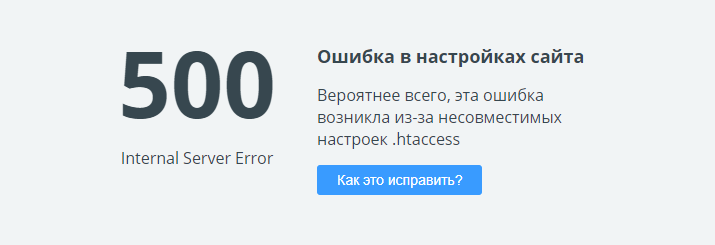
A 500 error (Internal Server Error) is a general HTTP response code indicating that the server encountered an unexpected condition and could not fulfill the request. Unlike 4xx errors, where the problem is typically with the client's request, the 5xx series points to a server-side failure. The user sees a standard message without details, while the exact cause is recorded in the logs. Common causes include:
- Syntax errors in application code (PHP, Python, Node.js).
- Insufficient permissions for files or folders for the web server.
- Exceeding memory or execution time limits.
- Incorrect web server configuration (Apache, Nginx, IIS).
- Conflicts between plugins, modules, or libraries.
- Database connection issues.
Step-by-Step Diagnosis and Fix
Step 1: Find Error Details in Server Logs
Logs are your primary source of information. Without them, you are operating blind.
- Identify your web server. Common log paths:
- Apache:
/var/log/apache2/error.log(Debian/Ubuntu) or/var/log/httpd/error_log(CentOS/RHEL). - Nginx:
/var/log/nginx/error.log. - IIS:
%SystemDrive%\inetpub\logs\LogFiles\W3SVC1. - On shared hosting, logs are often accessible via the control panel (cPanel → "Metrics" → "Errors").
- Apache:
- Find entries matching the error time. Example for PHP:
[04-Mar-2026 14:30:22] PHP Fatal error:  Uncaught Error: Call to undefined function some_function() in /var/www/html/index.php:15
Stack trace:
#0 {main}
  thrown in /var/www/html/index.php on line 15
Here it's clear: inindex.phpon line 15, a non-existent function was called. - If logs are empty, enable detailed logging:
- For PHP in
php.ini:log_errors = On,error_log = /var/log/php_errors.log. - For Apache:
LogLevel debugin the virtual host configuration. - For Nginx:
error_log /var/log/nginx/error.log debug;.
- For PHP in
💡 Tip: If you don't know where the logs are, create a test PHP file with
<?php phpinfo(); ?>and find theerror_logsection. Or check the web server configuration: for Apachegrep -r "ErrorLog" /etc/apache2/, for Nginxgrep -r "error_log" /etc/nginx/.
Step 2: Check Recent Changes to Code or Configuration
A 500 error often appears after:
- A CMS update (WordPress, Joomla, Drupal).
- Installing a new plugin, module, or theme.
- Editing
.htaccess,nginx.conf,web.config. - Making changes to application code.
What to do:
- Restore from a backup created before the changes. If you don't have one:
- Manually roll back changes:
- For WordPress: via FTP, rename the plugin folder (
wp-content/plugins/plugin-name→wp-content/plugins/plugin-name.disabled). If the error disappears, the problem is that plugin. Do the same for the theme (wp-content/themes). - For configs: restore the previous version from your editor's history or a backup.
- For WordPress: via FTP, rename the plugin folder (
- Check if the error is gone. If yes — look for the specific error in the rolled-back code (return to Step 1).
Step 3: Ensure Correct Permissions
Incorrect file permissions are a frequent cause of 500 errors, especially after migrating a site or changing hosts.
Standard permissions:
- Files:
644(-rw-r--r--). - Directories:
755(drwxr-xr-x). - Owner: the web server user (e.g.,
www-datafor Apache/Nginx on Debian/Ubuntu,apacheon CentOS).
How to apply on Linux:
cd /var/www/html  # Navigate to the site root
sudo chown -R www-data:www-data .  # Replace www-data with your user
sudo find . -type f -exec chmod 644 {} \;
sudo find . -type d -exec chmod 755 {} \;
For Windows (IIS):
- Open the site folder properties → "Security".
- Click "Edit" → "Add".
- Enter
IIS_IUSRS, click "Check Names". - Set permissions: "Read & execute", "Read".
- Ensure
IUSRalso has "Read" permissions.
Step 4: Check and Increase Resource Limits
If logs show Allowed memory size of X bytes exhausted (PHP) or Maximum execution time of X seconds exceeded, you need to increase limits.
- Find
php.ini:php --ini | grep "Loaded Configuration File"
Or create aninfo.phpwith<?php phpinfo(); ?>and open it in a browser. - Change parameters in
php.ini:memory_limit = 256M ; Was 128M or less max_execution_time = 60 ; Was 30 or less post_max_size = 32M ; For file uploads upload_max_filesize = 32M - Restart the web server:
sudo systemctl restart apache2 # Apache sudo systemctl restart nginx # Nginx sudo systemctl restart php-fpm # If using PHP-FPM - If you don't have access to
php.ini(shared hosting):- For Apache: add to
.htaccessin the site root:php_value memory_limit 256M php_value max_execution_time 60 - For some hosts: create a
user.iniin the site root with the same directives.
- For Apache: add to
Step 5: Disable Plugins/Modules to Find Conflicts
If the error appeared after installing/updating a plugin in a CMS.
WordPress:
- Via FTP, rename the
/wp-content/pluginsfolder toplugins.off. This disables all plugins. - If the error disappears, rename it back and disable plugins one by one by renaming their folders (e.g.,
akismet→akismet.off), until the error returns. - Check the plugin's compatibility with your WordPress version.
Joomla:
- If you have admin access, disable all extensions via "Extensions Manager".
- If not, via FTP rename folders in
/administrator/components/and/components/. - Check Joomla logs in
/administrator/logs/.
Drupal:
- If Drush is available, run
drush pm-disable --all. - Otherwise via FTP rename module folders in
/modules/and/sites/all/modules/.
Step 6: Check Configuration Files for Errors
Errors in web server configs are a common cause of 500s.
Apache (.htaccess and configs):
- Check
.htaccesssyntax in the site root. Delete all lines and add them back one by one, checking for the error. - Check the main config:
sudo apachectl configtest. OutputSyntax OKmeans it's correct. - Ensure required modules are enabled:
sudo a2enmod rewrite(if using SEO-friendly URLs).
Nginx (nginx.conf and files in sites-enabled):
- Check syntax:
sudo nginx -t. - Ensure there are no typos in
locationblocks, andproxy_pass(if present) points to the correct address (e.g.,http://127.0.0.1:8000). - Check permissions on files specified in
rootoralias.
PHP (php.ini):
- Open
php.iniand check for syntax errors (missing quotes, semicolons). - Ensure necessary extensions are enabled (e.g.,
extension=mysqli,extension=gd). - Verify
display_errors = Offon production (butlog_errors = On).
Errors in .htaccess (Apache) or nginx.conf (Nginx) cause 500 errors.
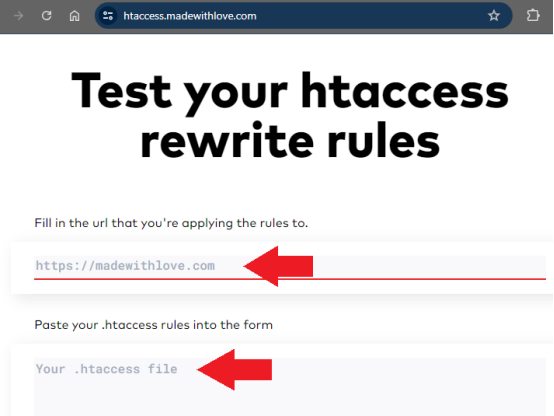
A syntax error in a .htaccess configuration file results in an Internal Server Error
Apache (.htaccess and configs):
- Check
.htaccesssyntax in the site root. Delete all lines and add them back one by one, checking for the error. - Check the main config:
sudo apachectl configtest. OutputSyntax OKmeans it's correct. - Ensure required modules are enabled:
sudo a2enmod rewrite(if using SEO-friendly URLs).
Nginx (nginx.conf and files in sites-enabled):
- Check syntax:
sudo nginx -t. - Ensure there are no typos in
locationblocks, andproxy_pass(if present) points to the correct address (e.g.,http://127.0.0.1:8000). - Check permissions on files specified in
rootoralias.
PHP (php.ini):
- Open
php.iniand check for syntax errors (missing quotes, semicolons). - Ensure necessary extensions are enabled (e.g.,
extension=mysqli,extension=gd). - Verify
display_errors = Offon production (butlog_errors = On).
Preventing 500 Errors
- Regularly check server logs (weekly or after each update). Set up monitoring via Logwatch, Papertrail, or similar tools.
- Test all changes in a staging environment before production.
- Use a version control system (Git) for quick rollbacks.
- Monitor resource limits: track memory usage (
memory_get_usage()in PHP) and execution time. - Update software gradually: CMS core, plugins, libraries — one at a time, and only from official sources.
- Configure a custom error page (e.g.,
ErrorDocument 500 /500.htmlin Apache) so users see a friendly interface, but do not disable logging.