Error 102 (INSTALL_FAILED_UID_CHANGED) on Android
Error 102 (full text: Failure [INSTALL_FAILED_UID_CHANGED]) occurs when installing an APK file on Android. The system issues it when it detects a user ID (UID) conflict for a package name. Each app on Android receives a unique UID. If the system's database already contains a record with a different UID for the same package name, the installation is halted.
Typical scenarios for its appearance:
- Attempting to install an APK signed with a different key than the already installed version.
- Manual installation after an Android update that changed the UID.
- Partial app removal with data preservation.
Why a UID Conflict Occurs
Primary cause: The Android system stores the package_name → UID mapping in /data/system/packages.xml. When installing a new APK with the same package name, if the system finds a record in this file with a UID different from what it would assign to the new app, it blocks the installation.
Specific triggers:
- Signing key change. The developer released an update signed with a different keystore. Android considers this a different app with the same name but requires a unique UID.
- Residual records after uninstallation. When uninstalling via
adb uninstallwithout the-kflag, app data is deleted, but a record inpackages.xmlmay persist if a system error occurs. - UID policy change after an OS update. In Android 6.0+, the system became stricter: the UID is now bound not only to the package name but also to the signing certificate. This breaks compatibility with older APKs.
- Corrupted Package Installer cache. The installer's cache contains outdated UID data, leading to a false positive for the protection mechanism.
How to Fix Error 102: 4 Working Methods
1. Reboot the Device
Sometimes the conflict is temporary (e.g., after a quick user switch). Rebooting clears the Package Manager's state.
- Press and hold the power button.
- Select "Reboot".
- After a full boot, try installing the APK again.
2. Clear Package Installer Data
This method removes cached records of conflicting UIDs.
- Open Settings → Apps (or Apps & notifications).
- Find Package Installer (may be called "Package Installer" or
Package Installer). - Tap Clear data and Clear cache.
- Try installing the APK again.
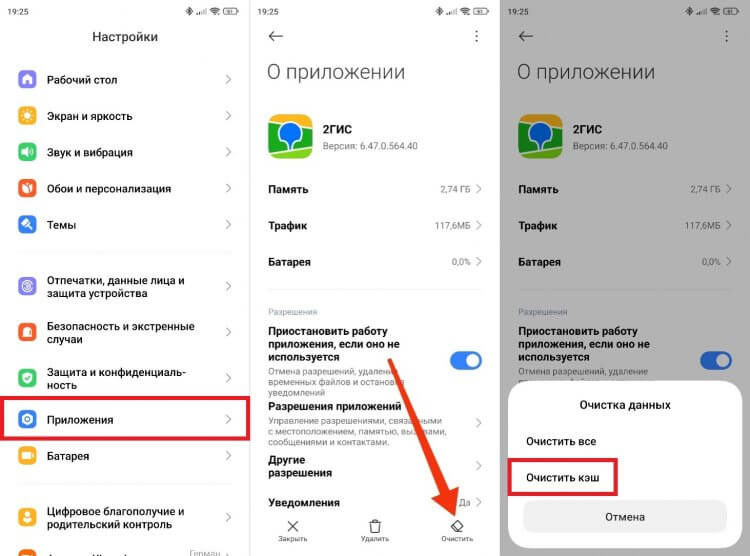
Android settings screenshot: clearing data and cache for the Package Installer app
3. Full App Removal via ADB
If the app is already present in the system, uninstall it along with its data.
# Uninstall the app and its data
adb uninstall com.example.package

# If the above doesn't help (requires root)
adb shell rm -rf /data/app/com.example.package*
After this, install the APK again. Ensure the new APK is signed with the same key as the previous version (if it's an update).
4. Force Install with ADB Flags
Use the -r (overwrite) and -d (allow downgrade) flags to bypass the UID check.
adb install -r -d your_app.apk
-r— overwrites the existing app, preserving its data.-d— allows installation of a version lower than the current one, which can reset the conflicting UID.
Important: If the app is already installed, first run adb uninstall com.example.package, then run the command with the flags.
Preventing Error 102
- For users: Install apps only from Google Play. When manually installing an APK, first uninstall the Play Store version.
- For developers: Use the same keystore for all app versions. When debugging on a device with a release version already installed, either use the same signing key or change the
applicationIdinbuild.gradle. - After an Android update: if the error appears for a system app, wait for an update from the manufacturer or install a Play Store version compatible with the new OS version.